Mobius guide · Updated 2026-10-19

Start with market data,then connect your trading account

Connect the account and verify its data first, then learn the two legs and rules. Do not test an API by opening a position or copy every permission shown in reference screenshots.

Only viewing prices? You can skip adding an account.

Without an account you can view prices, but cannot place orders. The connection form requires trading access without withdrawals.

Prepare these four things

  • Access to the intended main account or subaccount and the official site. Confirm whether this is the real-funds mainnet or a separate test environment.
  • Required identity verification, 2FA or a connected main wallet. Enter passwords and verification codes only on official pages.
  • The fixed public egress IP used for API requests by this SM FUND deployment. Confirm it with the operator; it may differ from the website DNS address and your computer IP.
  • A trusted password manager or encrypted store for each key, secret and passphrase set, or dedicated API wallet private key.

What Mobius can do

From finding opportunities to trading by rules

Compare prices across exchanges first, then pick the buy and sell sides and set your trading conditions.

Opportunities

Cross-exchange opportunities in one view.

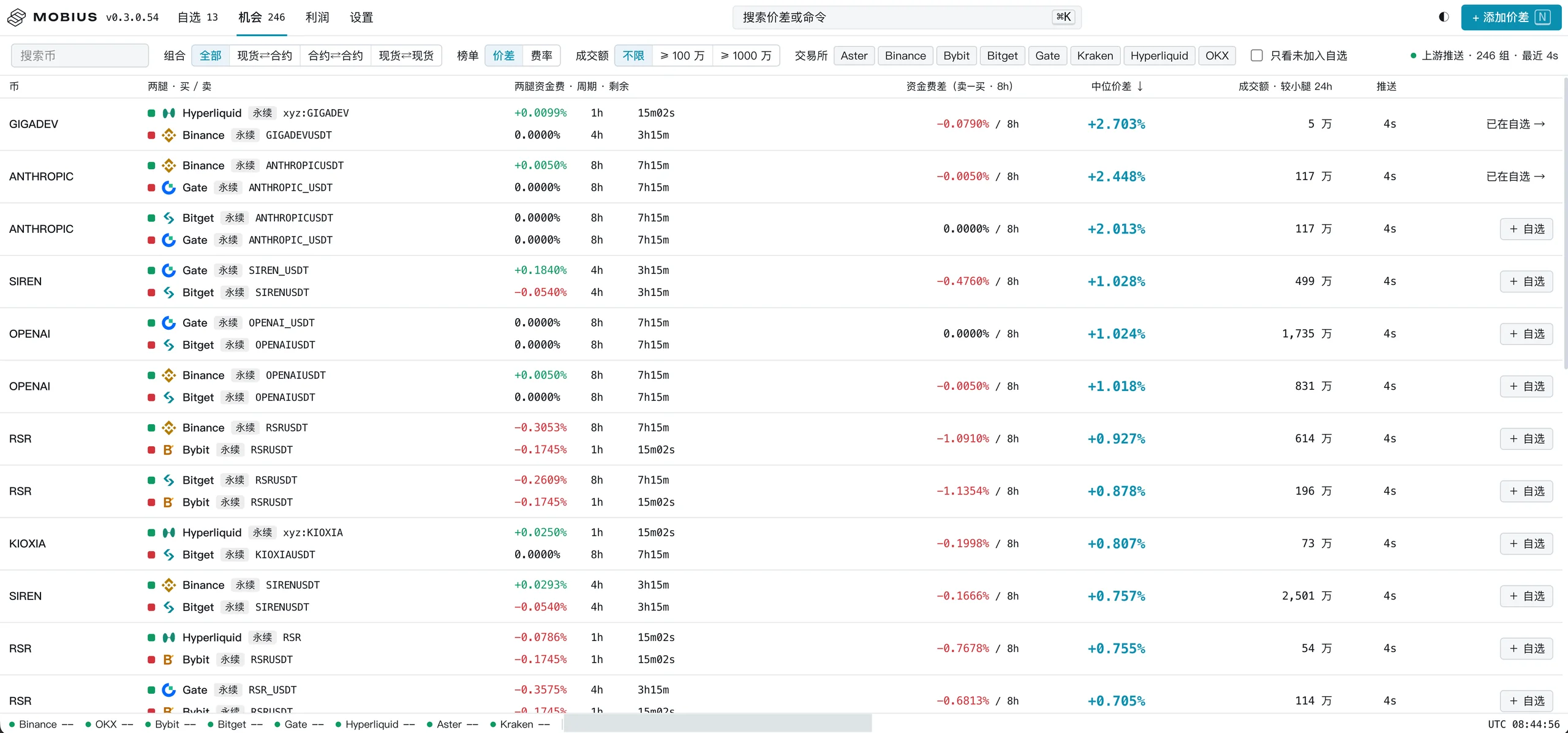
Compare spreads, funding rates and volume across exchanges together. When you find a pair worth watching, click "+ Watchlist" to bring both sides in, then set your trading rules.

  1. Compare
  2. Add to watchlist
  3. Set rules

Adding to the watchlist does not place an order. Rules must be configured before any trade.

Terms explained
Spread
The price difference between the two sides. The screenshot shows the median spread, which is not profit after costs.
Funding rate
The rate used to charge or pay funding while holding a perpetual. Direction and settlement time follow each exchange.
24h volume
Traded value over the last 24 hours. The table shows the smaller side so you can watch the weaker leg.

Free pairing

You decide how the two sides pair.

The buy side and sell side of a trade are called its two legs. Choose the exchange and instrument for each leg, then set when to trade and how much each time.

  • Ratio pairBTC / ETH

    Watch whether BTC gets more or less expensive relative to ETH, and set conditions on the price ratio.

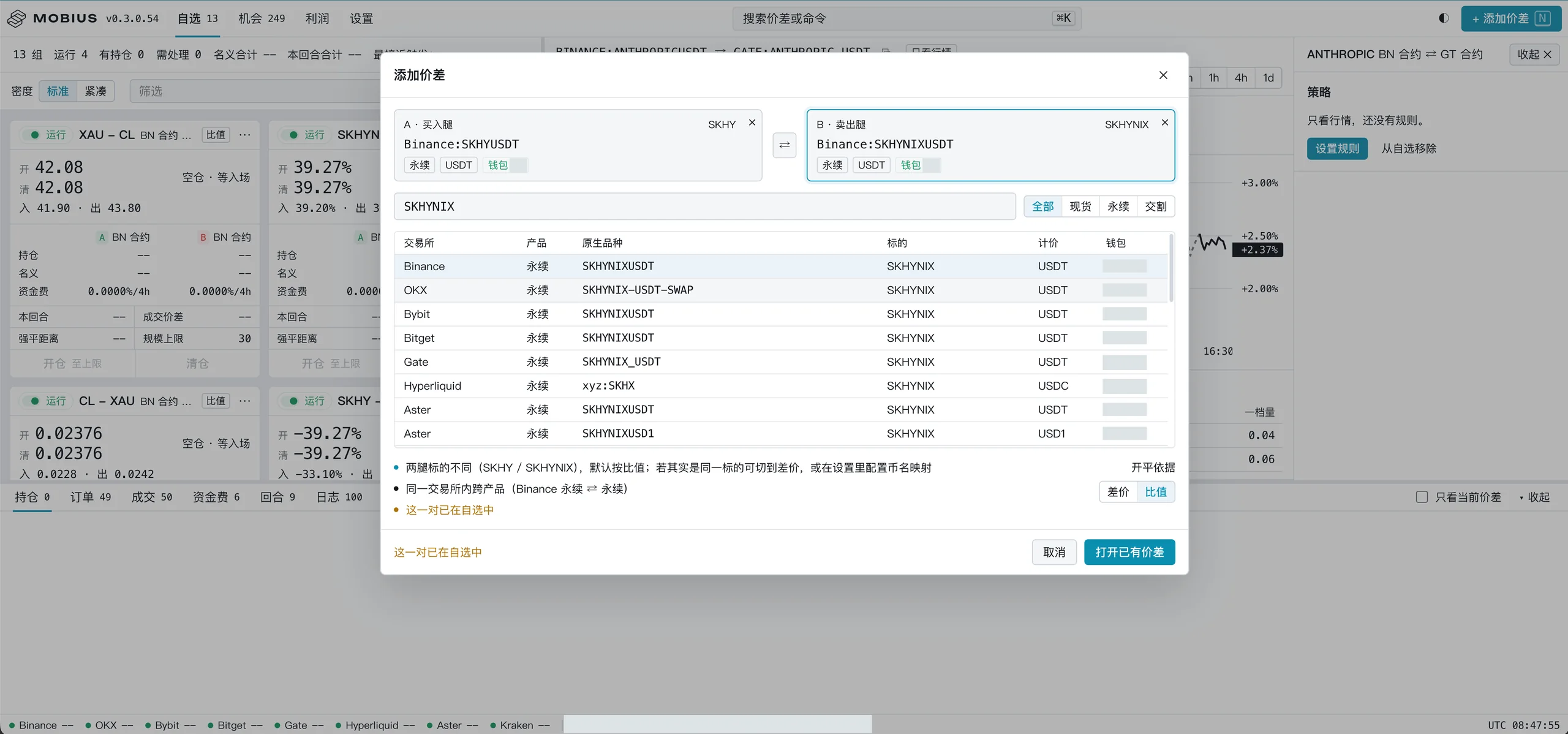
  • Cross-market pairSK hynix Korea / US ADR

    An ADR is a depositary receipt traded in the US. Check the quote currency, FX rate and shares per receipt before comparing.

  • Statistical pairGold / Silver

    Study the usual price relationship first, then look for a pairing opportunity when it clearly deviates.

These examples are for illustration. Price relationships can change and pair trades can lose money.

Terms explained
Difference
How far apart the two prices are in money terms.
Ratio
How many times one price is of the other, useful for tracking changes in relative price.

Execution

Less waiting, keeping up with the market.

Order requests travel over optimized routes, reducing the wait when opening and closing positions so the two legs follow each other more closely.

Premium & costsIn development

Check the spread, then count the costs.

We plan to show spread, premium and estimated costs together, including fees, slippage and any funding paid or received, so you can judge whether a spread covers its costs.

In development. Real data and calculation methods will be shown at launch.

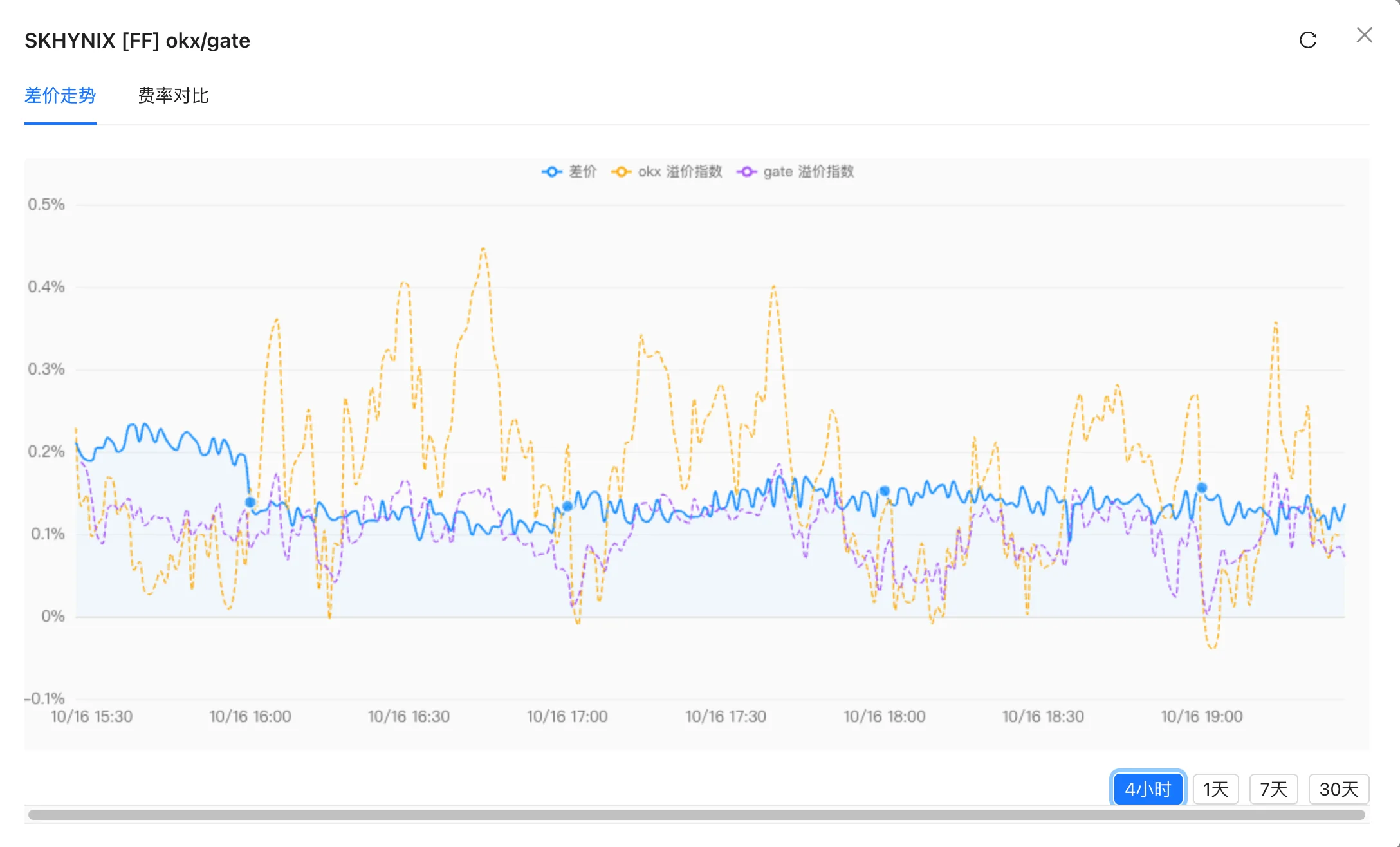
Premium index reference · not a live Mobius screen
Premium index reference · not a live Mobius screenDesign reference only. This feature is not live yet.
Terms explained
Premium
How far a trading price sits above a reference price, explaining where a gap comes from.
Slippage
The difference between the quote you see and the price you actually get.
Margin of safety
How much spread is left after costs. This estimate is not actual profit.

Symbol check

Different names, same asset, matched.

The same asset can use different symbols on different exchanges. Mobius aligns these names while keeping each exchange's original symbol, quote currency and 24h volume, so you can confirm both legs are right.

One asset, different symbols

  • BTCUSDTVenue A · USDT perpetual
  • BTC-USDT-SWAPVenue B · USDT perpetual
  • BTC_USDTVenue C · USDT perpetual

BTCUnified asset name · original symbols kept

  • Original exchange symbol
  • Quote currency
  • 24h volume

Same-name risk

Both called BEN, but not the same asset.
  • BENFranklin ResourcesStock ticker
  • BENA different crypto assetStandalone token

Public reports described dividend settlement going wrong after two same-name assets were confused. The same symbol does not mean the same asset or the same dividend rules.

Source: public reporting ↗

After names are aligned, still check whether it is spot or a contract, its quote currency and each contract's rules.

More protection and records

For conditional entry and exit, risk limits, stop loss, matching actual leg positions, and fills and funding records, see Legs and controls and FAQ below.

Setup workflow

Add an exchange account in Settings

  1. Open Settings

    Select an exchange not yet added on the left, or click Add in its row under All exchanges.

  2. Enter an account name and dedicated credentials

    Choose a name to distinguish accounts on the same exchange; it appears on the spread legs. Do not enter a UID, login password or main wallet seed phrase.

  3. Confirm Verify and save

    Credentials go to this deployment’s server, are encrypted and will not be shown again. Enter them only in a deployment you trust.

  4. Review detected details

    Check account type, API permissions, tradable products and the private account stream. Use Replace to update credentials; the new key must belong to the same exchange account.

Credentials are stored on the server, beyond your browser

For an exchange IP allowlist, confirm the deployment’s actual public API egress IP. Do not assume it is your computer or website DNS address.

How account types are detected

The form has no manual classic/unified, cross/isolated or one-way/hedge mode selector. Account details are read during verification. Standard account is a local display label, not an exchange margin mode. Do not change modes or leverage just to connect.

ExchangeVisible productsAccount mode notes
HyperliquidPerpetuals / SpotConnected details display Standard account. This is not proof of full support for cross, isolated or other margin modes.
OKXSpot / PerpetualsConnected details display Standard account. The actual mode is read during verification; no separate margin-mode selector is shown.
BinanceSpot / Stock contracts / USD-margined futuresConnected details display Unified account (Portfolio Margin). This does not require new users to upgrade or establish that other modes were verified.
BybitSpot / FuturesThe form detects account type and products after verification. Specific account or margin modes were not live-tested.
GateSpot / Futures / Stock contracts / CrossEx futures / CrossEx spotVerification detects account type and enabled products. A listed module does not establish permission or completed trading tests.
BitgetSpot / FuturesAccount type is detected during verification. The form has no account-mode or one-way/hedge selector.
AsterFutures / SpotDetected during verification. The current form has no main-account user or agent signer address fields.

Product names are interface labels. Listing a module does not establish account access, support for every contract, or completed trading tests for a mode.

Browse by exchange

Choose your exchange

Create credentials on the exchange first, then enter the actual fields in SM FUND.

API wallet

Hyperliquid setup

Step 1: Create dedicated credentials on the exchange

Screenshots cover More navigation, naming, Generate / Authorize API Wallet, validity and the final Authorize button. Private-key display and main-wallet signing dialogs are excluded.

  1. Step 1
    Confirm the account and find the entry

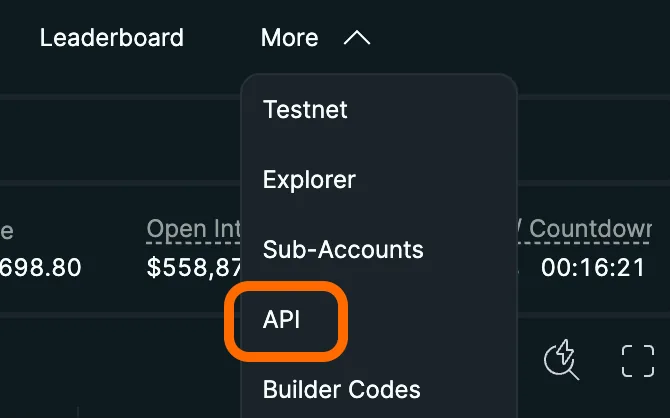
    Connect the actual trading main wallet in the official app. Confirm mainnet and the target account; check official account activation requirements for first use. Never enter the main wallet seed phrase or private key into the arbitrage tool. Find API under More.

    Figure 1Open API from More

    Find API in the More menu after login. Complete account connection yourself on the official site.

    Hyperliquid Open API from More
  2. Step 2
    Name a dedicated API wallet

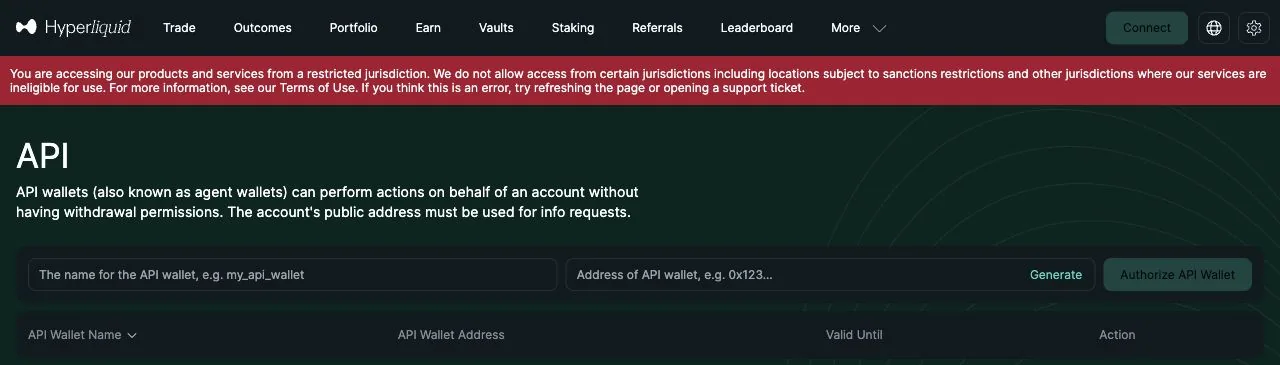
    On the API page, enter a separate name such as arbitrage-tool and click Generate to create a dedicated API wallet address.

    Figure 2Official API wallet page

    Locate the name, API Wallet Address, Generate and Authorize API Wallet controls.

    This blank page was viewed without a connected wallet; no wallet was generated or authorized. The regional restriction notice is preserved; official eligibility rules apply.

    Hyperliquid Official API wallet page

    Figure 3Enter a separate API wallet name

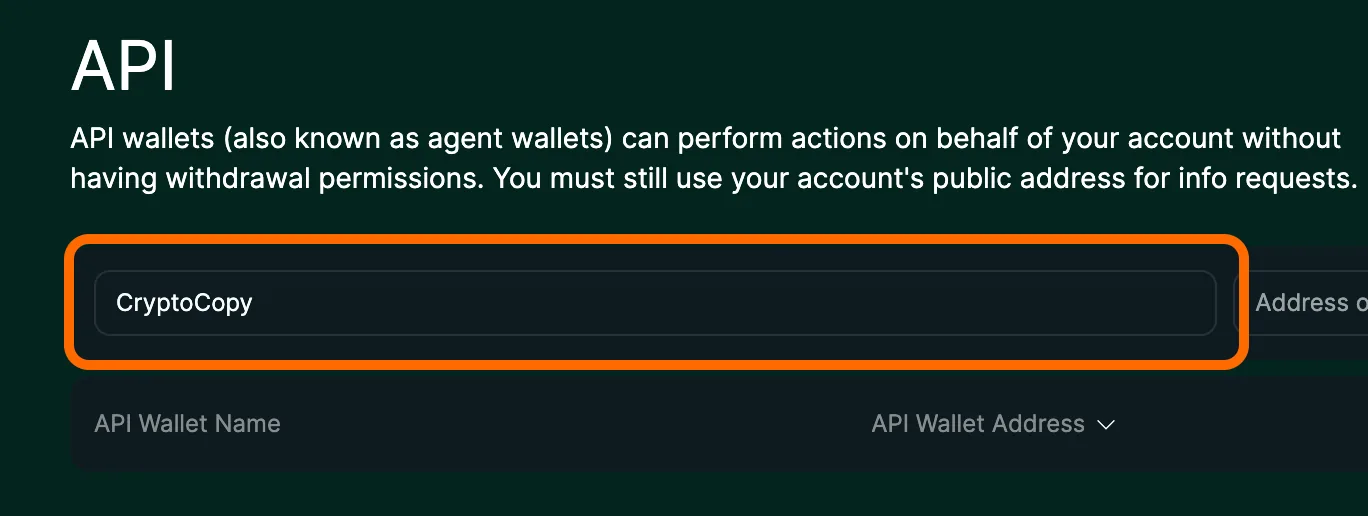
    Use a name describing your purpose, such as arbitrage-tool.

    CryptoCopy is only the reference tutorial’s example name. You do not need that tool.

    Hyperliquid Enter a separate API wallet name
  3. Step 3
    Open the authorization dialog

    Click Authorize API Wallet. Opening the dialog does not complete authorization.

    Figure 4Generate an address, then open authorization

    Click Generate, then Authorize API Wallet. The long 0x value is an API wallet address, not a private key or main-account address.

    Do not copy the example address. The current SM FUND main-account form does not need a main address.

    Hyperliquid Generate an address, then open authorization
  4. Step 4
    Save the private key and set validity

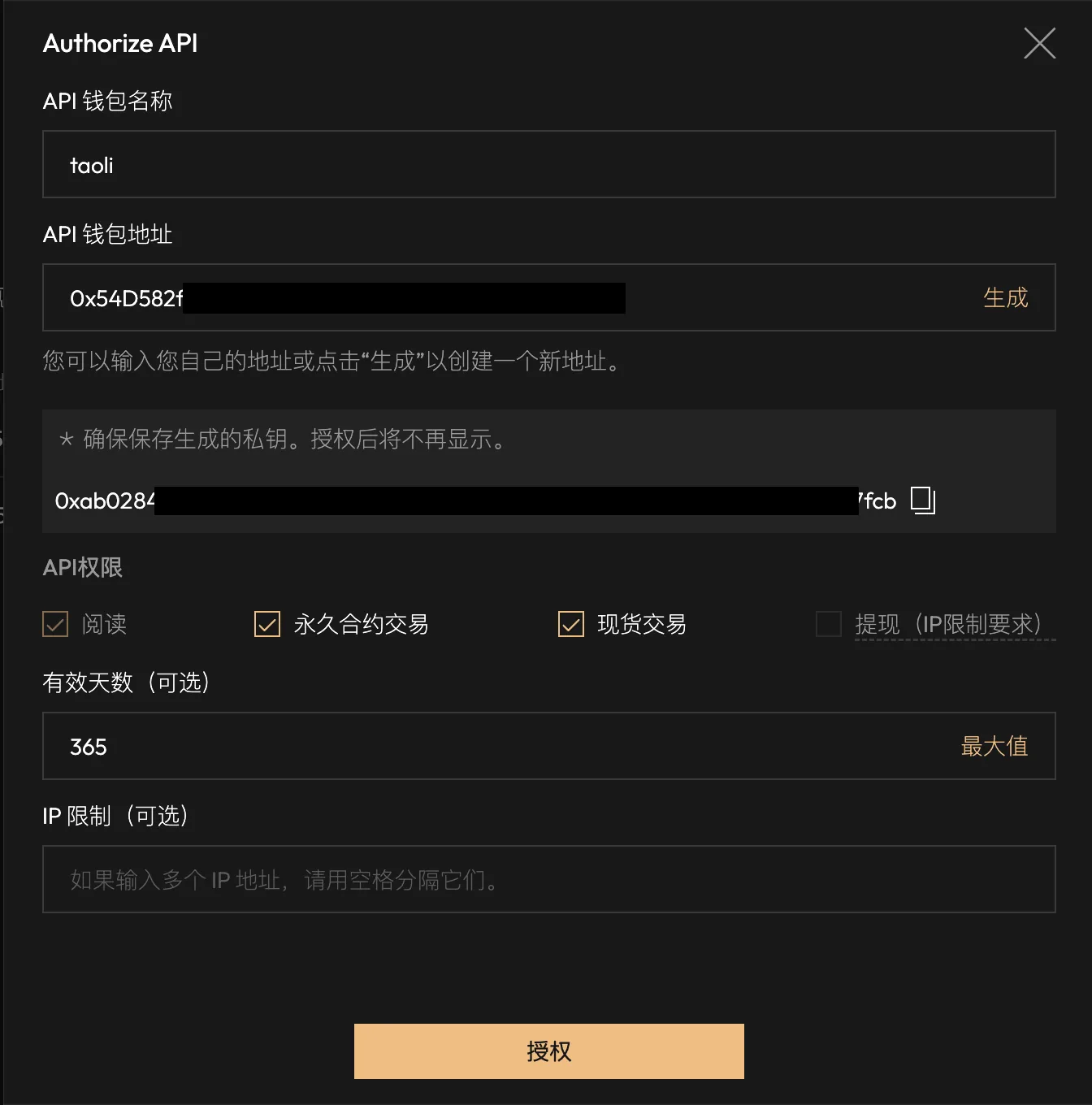
    Choose the validity period and save the displayed dedicated private key in a trusted password manager or encrypted store. Check its address and confirm it is saved before continuing.

    Figure 5Validity and final Authorize button

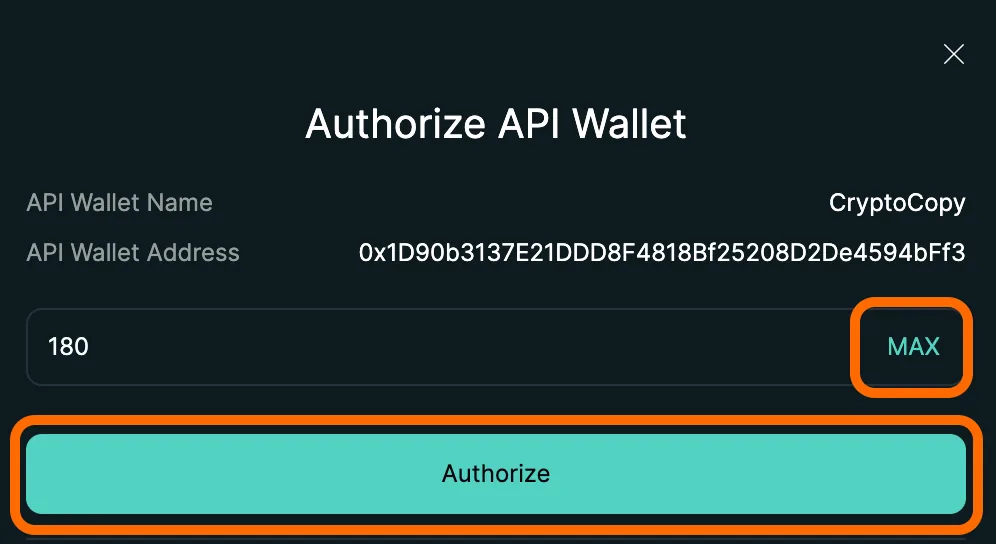
    Save the dedicated private key, choose Days Valid, then approve the authorization signature with your main wallet.

    The private-key area is excluded. 180 days / MAX are examples, not universal requirements; follow the current official options and your needs.

    Hyperliquid Validity and final Authorize button
  5. Step 5
    Sign and verify authorization

    Check the official domain, validity and authorization details. Click Authorize in the dialog and approve with the main wallet. Confirm the agent is listed and unexpired. Generating an address alone is not enough.

Step 2: Enter the connection fields in SM FUND

  1. Open Settings and select Hyperliquid on the left, or click Add in its row under All exchanges.
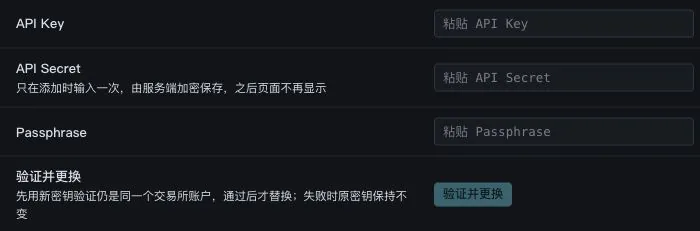
  2. Enter an account name, then paste the dedicated credentials below. Preserve the original values without extra spaces, quotes or line breaks. Never mix keys, secrets or passphrases from different sets.
Form fieldWhat to enter
Account nameChoose a recognizable name, such as Arbitrage account
Subaccount address (blank for main account)Blank for a main account; use the actual subaccount 0x address for a subaccount
API wallet private keyThe private key of an authorized dedicated API wallet, not the main wallet key
Common input mistakes

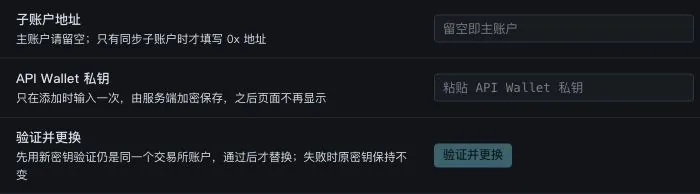
Main account: leave Subaccount address blank and enter only the dedicated API wallet private key. Subaccount: enter its actual 0x address and the authorized API wallet private key. There is no main-wallet address field.

For a new account, check the fields rather than the Replace button

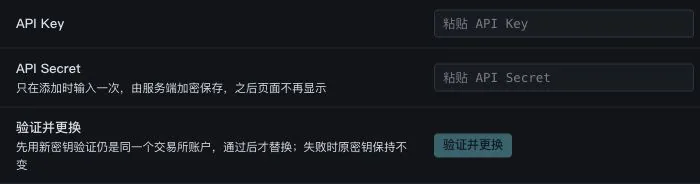
The blank Replace form below only identifies credential fields for an existing account. A new account also needs an account name and Verify and save. Verify and replace updates credentials only for the same exchange account.

Hyperliquid connection fields in SM FUND
Figure 6 · SM FUND connection fields (blank form)

Step 3: Verify, save and check account data

  1. Once you trust this deployment, click Verify and save.

    Credentials are encrypted on the server and will not be shown again. Keep a secure backup before saving.

  2. Check the account identity, detected type, enabled products, private account stream and last sync time.

    Compare balances, positions and open orders with the same account and market on the exchange.

  3. If verification fails or keeps loading, record the redacted error code, time and target market.

    Check the credential set, IP, permissions and account environment first. Do not repeatedly add accounts, enable every permission or place orders to test connectivity.

What to check after connecting Hyperliquid

Compare balances, positions and orders with the same main or subaccount and spot or perpetual market on the exchange. Leave Subaccount address blank for a main account. For a subaccount, enter its actual address, not the API wallet address. If main-account detection fails, retain the redacted error for support; this form has no main-address field.

Exchange notes

An API wallet signs as an agent. Use separate API wallets for separate trading processes to reduce nonce conflicts. Create a new agent after revocation or expiry; do not reuse a revoked address.

Connected details display Standard account. This is not proof of full support for cross, isolated or other margin modes.

API key

OKX setup

Which permissions does this guide use?

The SM FUND form requires trading access without withdrawals. Keep necessary read access, enable trading only for the markets you need, and disable withdrawals. You can view public prices without adding an account.

Step 1: Create dedicated credentials on the exchange

Screenshots cover the profile entry, Create API, purpose/name/passphrase/IP form, permissions and the created-key list. Full credentials and QR codes are excluded; complete 2FA on the official site.

  1. Step 1
    Open API creation

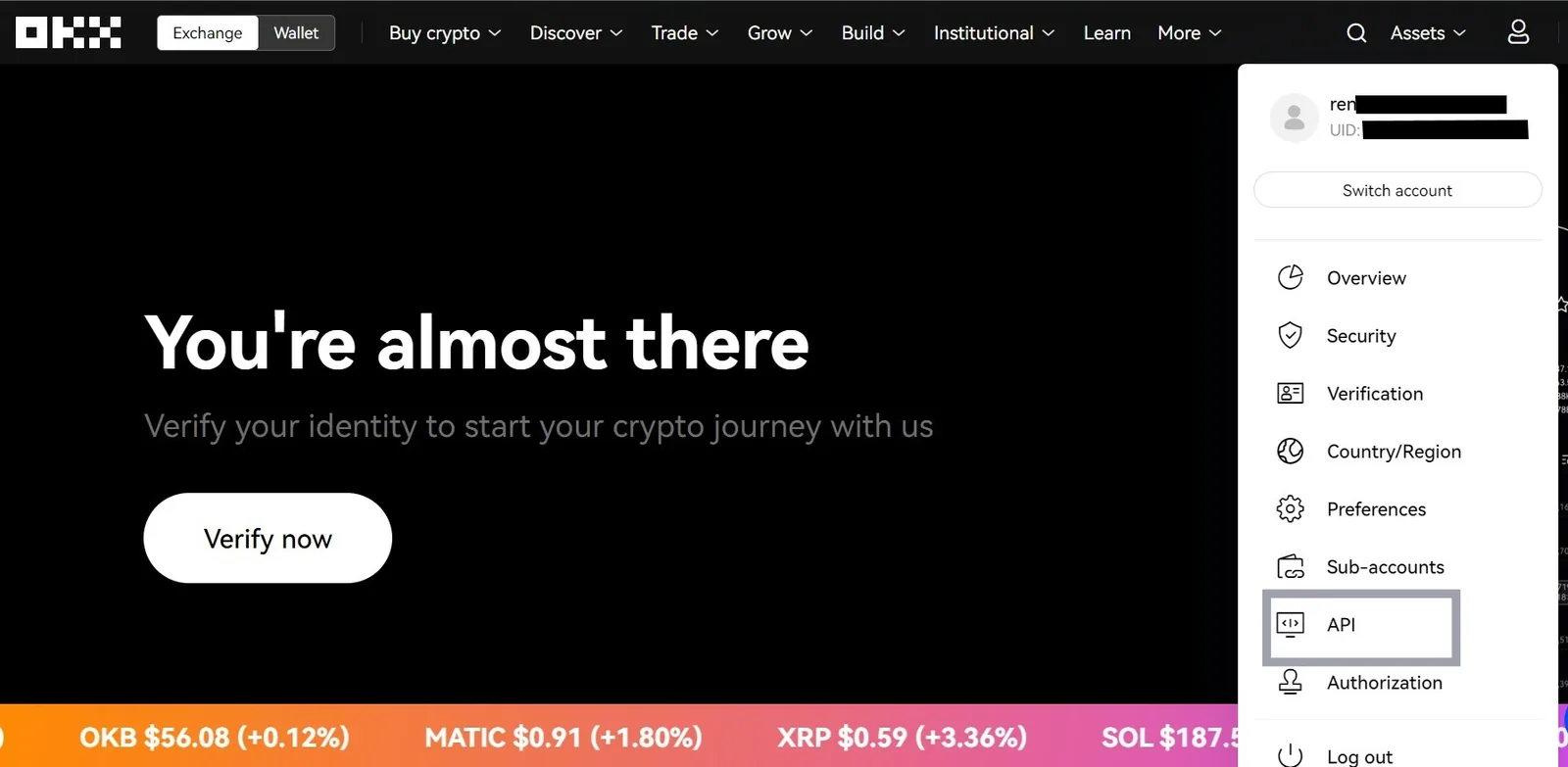
    Sign into the intended main account or subaccount and go to profile → API and connections → Create API.

    Figure 1Open API from the profile menu

    Use the top-right profile → API. Newer versions may call it API and connections.

    OKX Open API from the profile menu

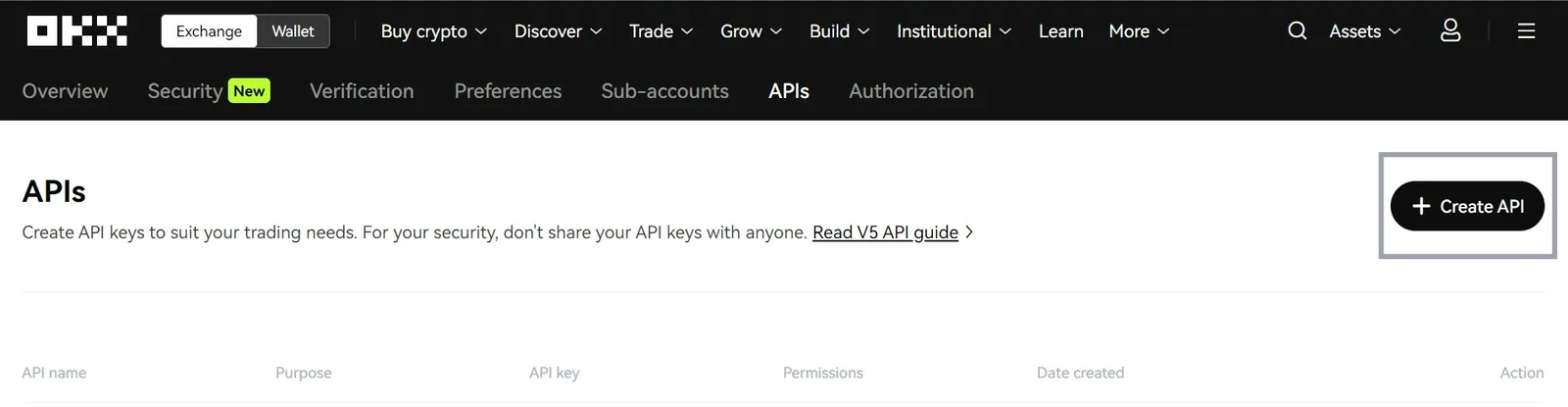
    Figure 2Click Create API

    Find + Create API at the top right of the APIs page.

    OKX Click Create API
  2. Step 2
    Set purpose, name and API passphrase

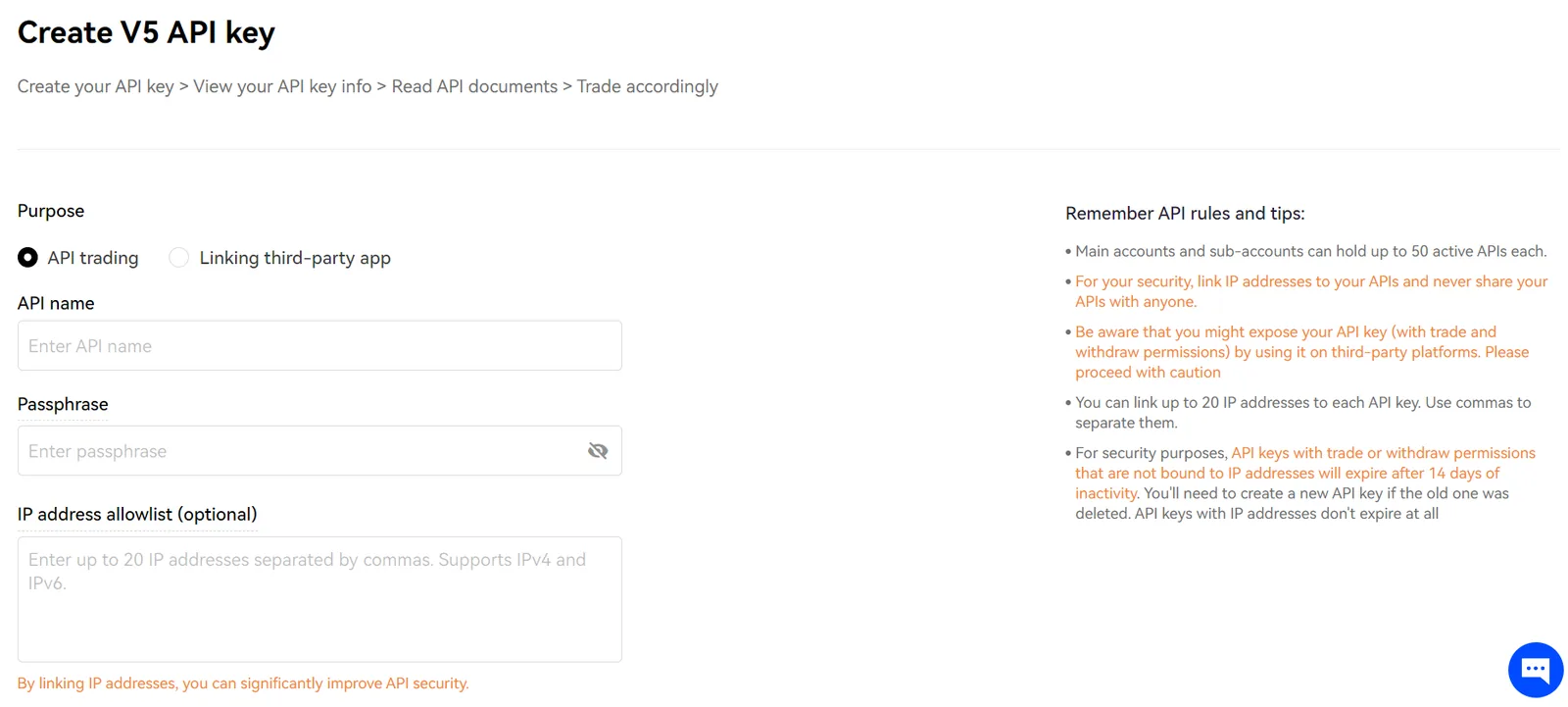
    Check Account and Used for. This guide uses manual key/secret entry, not another app’s third-party binding. Set and save this API set’s Passphrase; it is not your login password.

    Figure 3Purpose, name, Passphrase and IP

    For manual credentials choose API trading, enter API name and your Passphrase, then the real execution egress IP under IP address allowlist.

    This is a reference form. Blank or optional does not mean you should omit the deployment allowlist. Follow the official guide if the interface changes.

    OKX Purpose, name, Passphrase and IP
  3. Step 3
    Bind the execution server IP

    Enter this deployment’s actual fixed public API egress IP. Ask the operator if uncertain; do not substitute a DNS address or screenshot example.

  4. Step 4
    Review markets and permissions

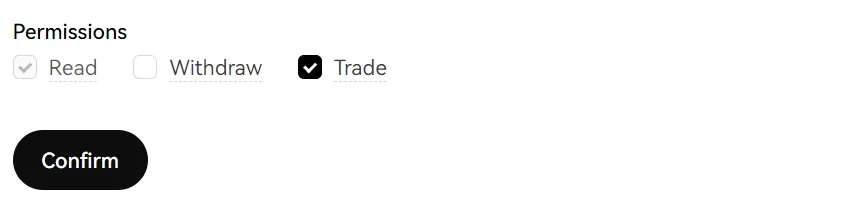
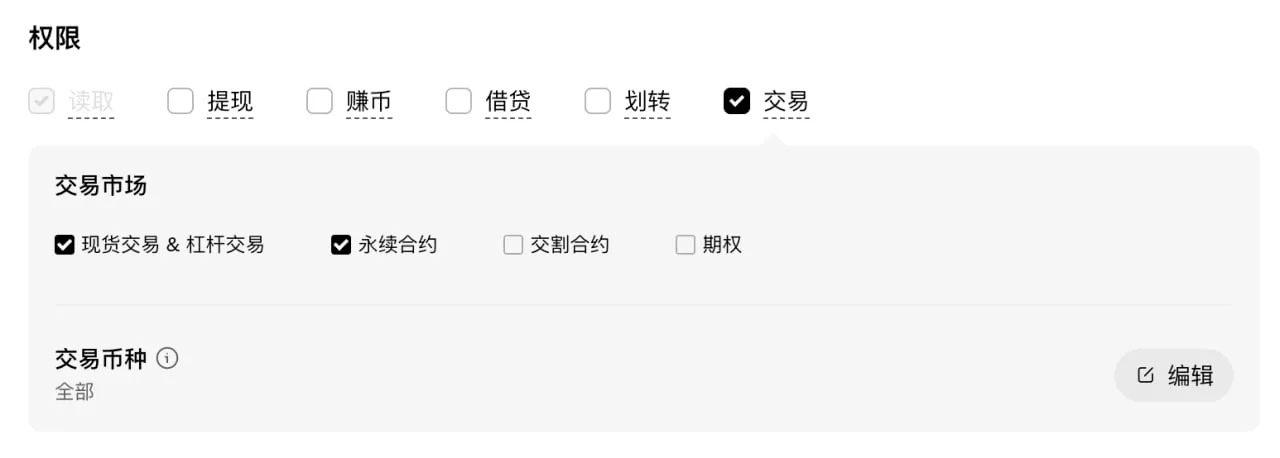
    Keep read access and enable trading for needed spot or perpetual markets. Disable withdrawals, and separately inspect Transfer, Loan and Earn even when Trade is already selected.

    Figure 4Read, Trade and Withdraw

    Keep Read, enable Trade as needed, and leave Withdraw unchecked.

    This image does not show newer Transfer / Loan / Earn controls. Check them separately in the full form.

    OKX Read, Trade and Withdraw

    Figure 5Trading markets and permissions

    Match read and trading permissions to the required market; keep withdrawals disabled.

    The example selects both spot/margin and perpetuals. Not everyone needs both. Also check Transfer, Loan and Earn.

    OKX Trading markets and permissions
  5. Step 5
    Verify and save one credential set

    Complete the required security checks. Store the generated API key, secret key and chosen Passphrase together before closing the page.

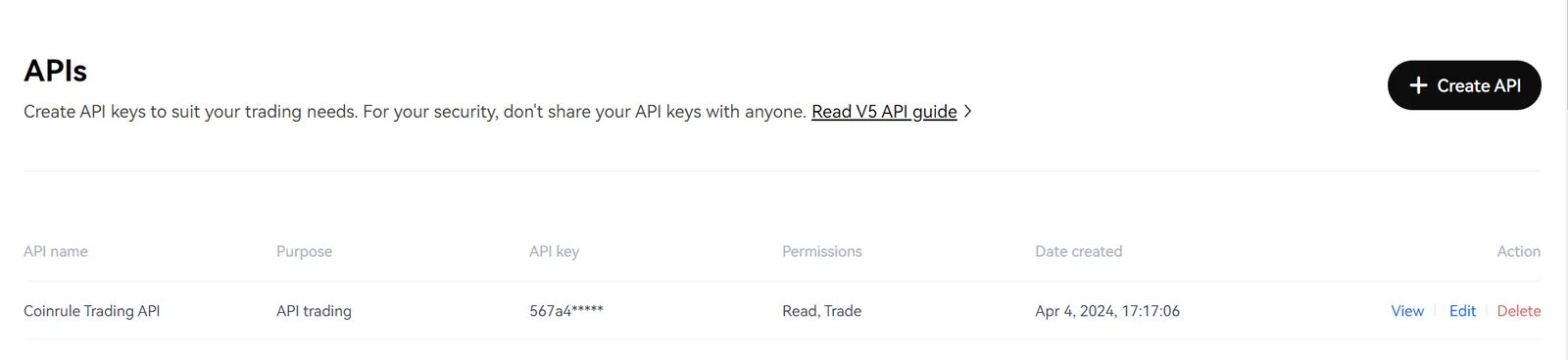
    Figure 6Check names and permissions after creation

    Review the name, purpose and permissions. Save full credentials from your own official page; masked asterisks are not usable keys.

    Coinrule Trading API is only the source account’s example name. No Coinrule connection is required; full keys are not displayed.

    OKX Check names and permissions after creation

Step 2: Enter the connection fields in SM FUND

  1. Open Settings and select OKX on the left, or click Add in its row under All exchanges.
  2. Enter an account name, then paste the dedicated credentials below. Preserve the original values without extra spaces, quotes or line breaks. Never mix keys, secrets or passphrases from different sets.
Form fieldWhat to enter
Account nameChoose a recognizable name, such as Arbitrage account
API keyThe API key generated by the exchange, not a UID
API secretThe secret from the same credential set as the key above
PassphraseThe API passphrase chosen when creating this key set
Common input mistakes

Use the key and secret from one API set, with the Passphrase chosen when creating that set, not your login password.

For a new account, check the fields rather than the Replace button

The blank Replace form below only identifies credential fields for an existing account. A new account also needs an account name and Verify and save. Verify and replace updates credentials only for the same exchange account.

OKX connection fields in SM FUND
Figure 7 · SM FUND connection fields (blank form)

Step 3: Verify, save and check account data

  1. Once you trust this deployment, click Verify and save.

    Credentials are encrypted on the server and will not be shown again. Keep a secure backup before saving.

  2. Check the account identity, detected type, enabled products, private account stream and last sync time.

    Compare balances, positions and open orders with the same account and market on the exchange.

  3. If verification fails or keeps loading, record the redacted error code, time and target market.

    Check the credential set, IP, permissions and account environment first. Do not repeatedly add accounts, enable every permission or place orders to test connectivity.

What to check after connecting OKX

Verify main/subaccount and account type, then compare spot and perpetual balances, positions and orders. For passphrase errors, check this API set’s Passphrase. Preserve mode errors for compatibility review instead of changing the account mode.

Exchange notes

Check Transfer, Loan and Earn as well as Read, Trade and Withdraw. The official FAQ states that permission updates may automatically enable the first three on some older Trade keys. Inspect actual permissions, not only Withdraw. A lost Passphrase requires a new key.

Connected details display Standard account. The actual mode is read during verification; no separate margin-mode selector is shown.

System-generated API

Binance setup

Which permissions does this guide use?

The SM FUND form requires trading access without withdrawals. Keep necessary read access, enable trading only for the markets you need, and disable withdrawals. You can view public prices without adding an account.

Step 1: Create dedicated credentials on the exchange

Screenshots cover Account / API Management, naming, security verification and IP restrictions. Use the classic or unified permission image appropriate to your account. The IP image excludes QR codes and credentials.

  1. Step 1
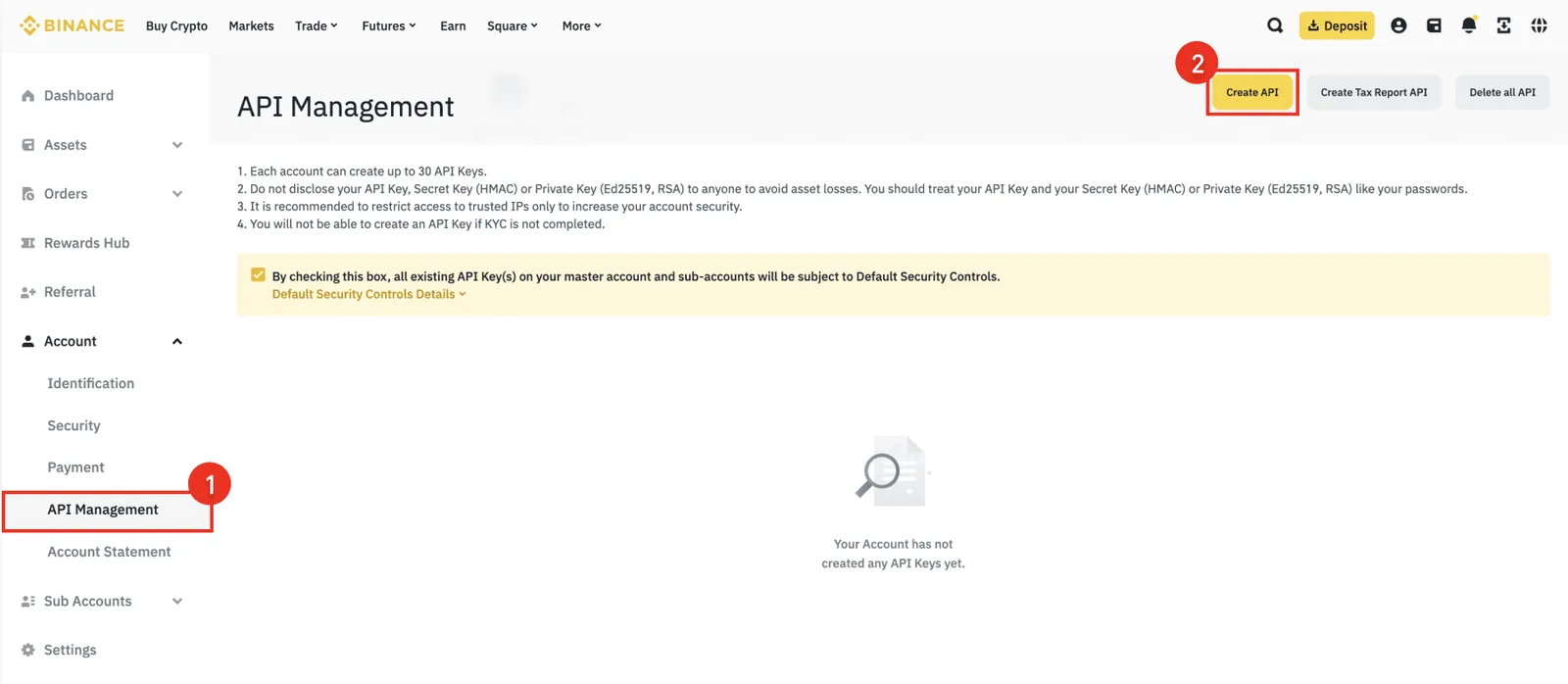
    Open API Management

    Sign into the intended account, then Account → API Management → Create API. Official requirements may include identity checks, 2FA and spot-wallet activation by deposit. Check the official page if creation is blocked; this guide does not perform deposits.

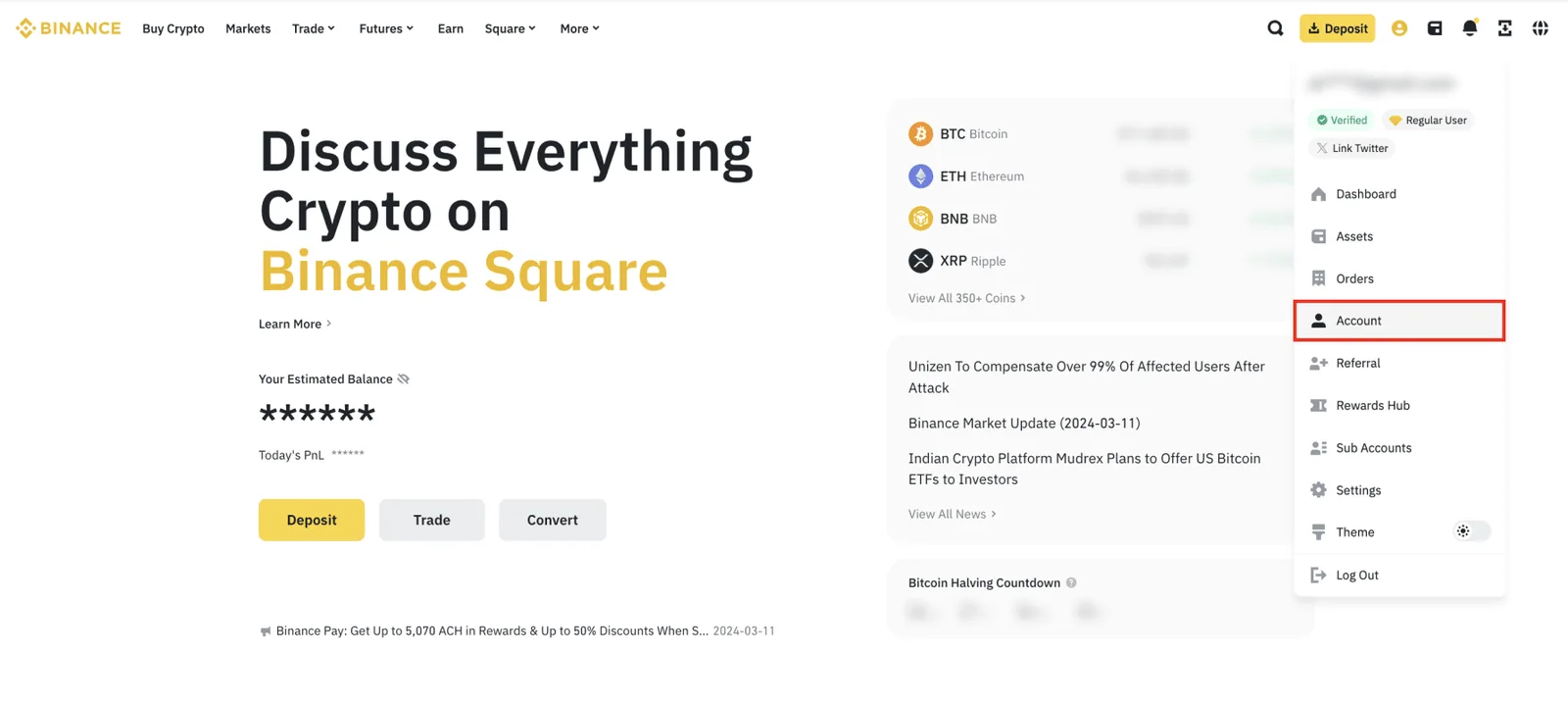
    Figure 1Profile → Account

    Open the top-right profile, then Account and API Management.

    Binance Profile → Account

    Figure 2API Management → Create API

    Choose API Management on the left and Create API at the top right. Avoid tax-report and delete actions.

    Keep the default security restriction enabled.

    Binance API Management → Create API
  2. Step 2
    Choose HMAC and a name

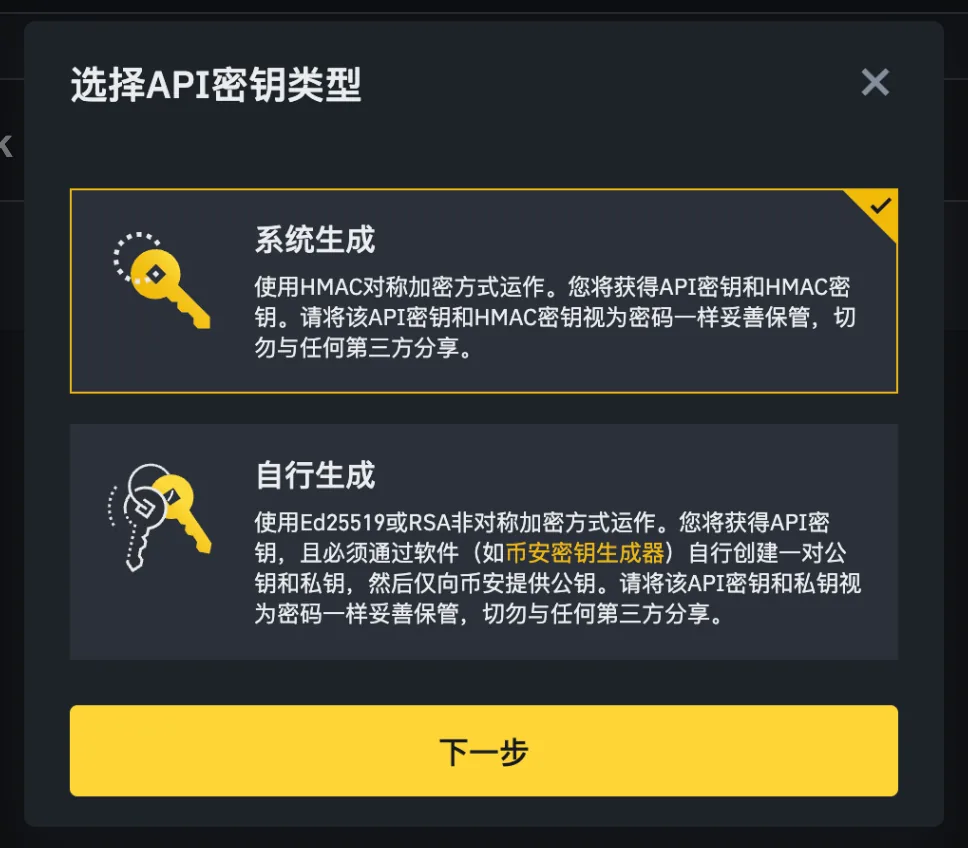
    Choose System generated (HMAC) and a dedicated name. This tool uses key/secret credentials, not self-generated RSA / Ed25519.

    Figure 3Choose a system-generated key

    Choose the system-generated key/secret option, not RSA / Ed25519.

    Binance Choose a system-generated key

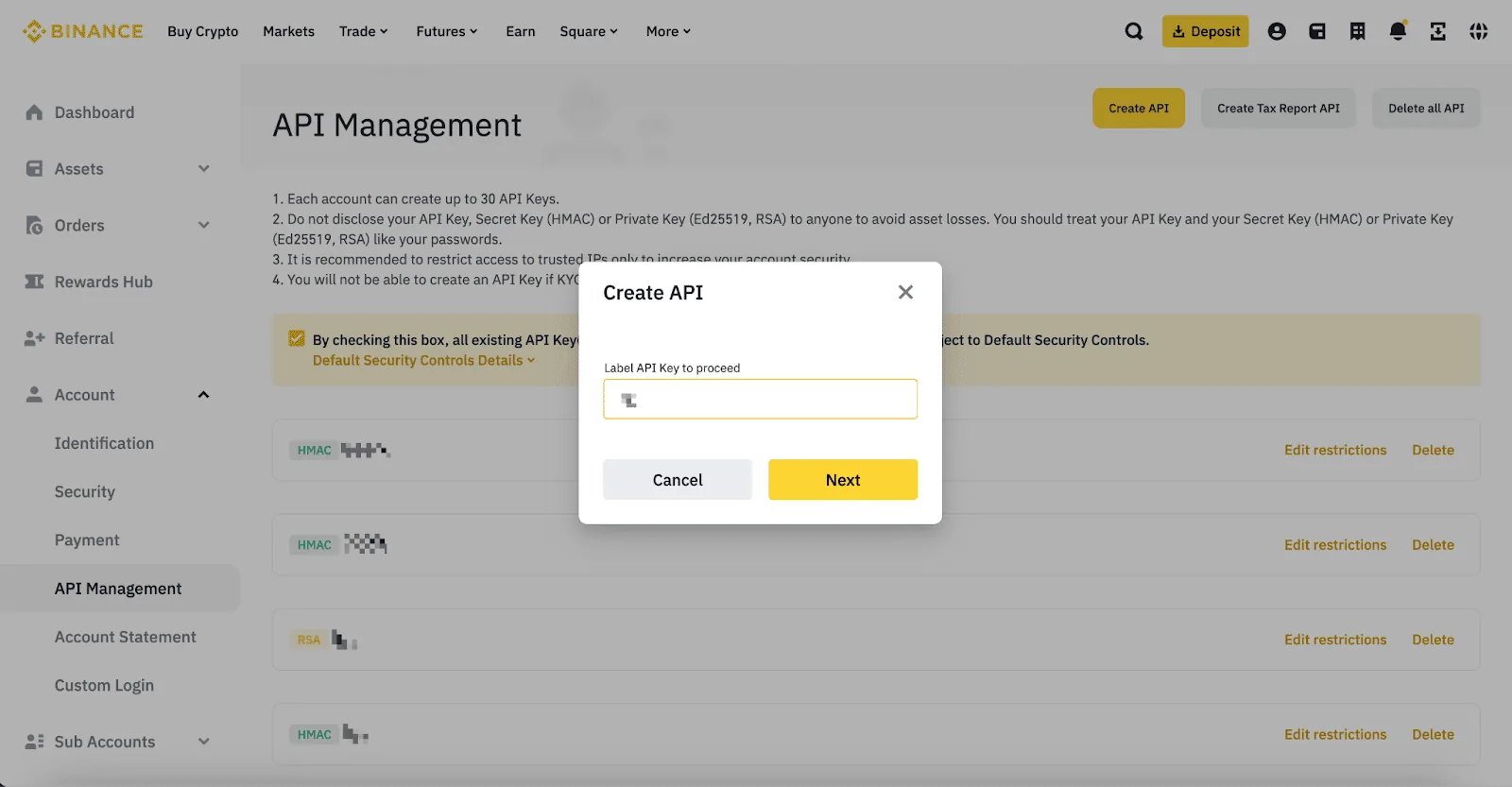
    Figure 4Name the API key

    Enter a purpose name in Label API Key to proceed.

    Binance Name the API key
  3. Step 3
    Verify and save the keys

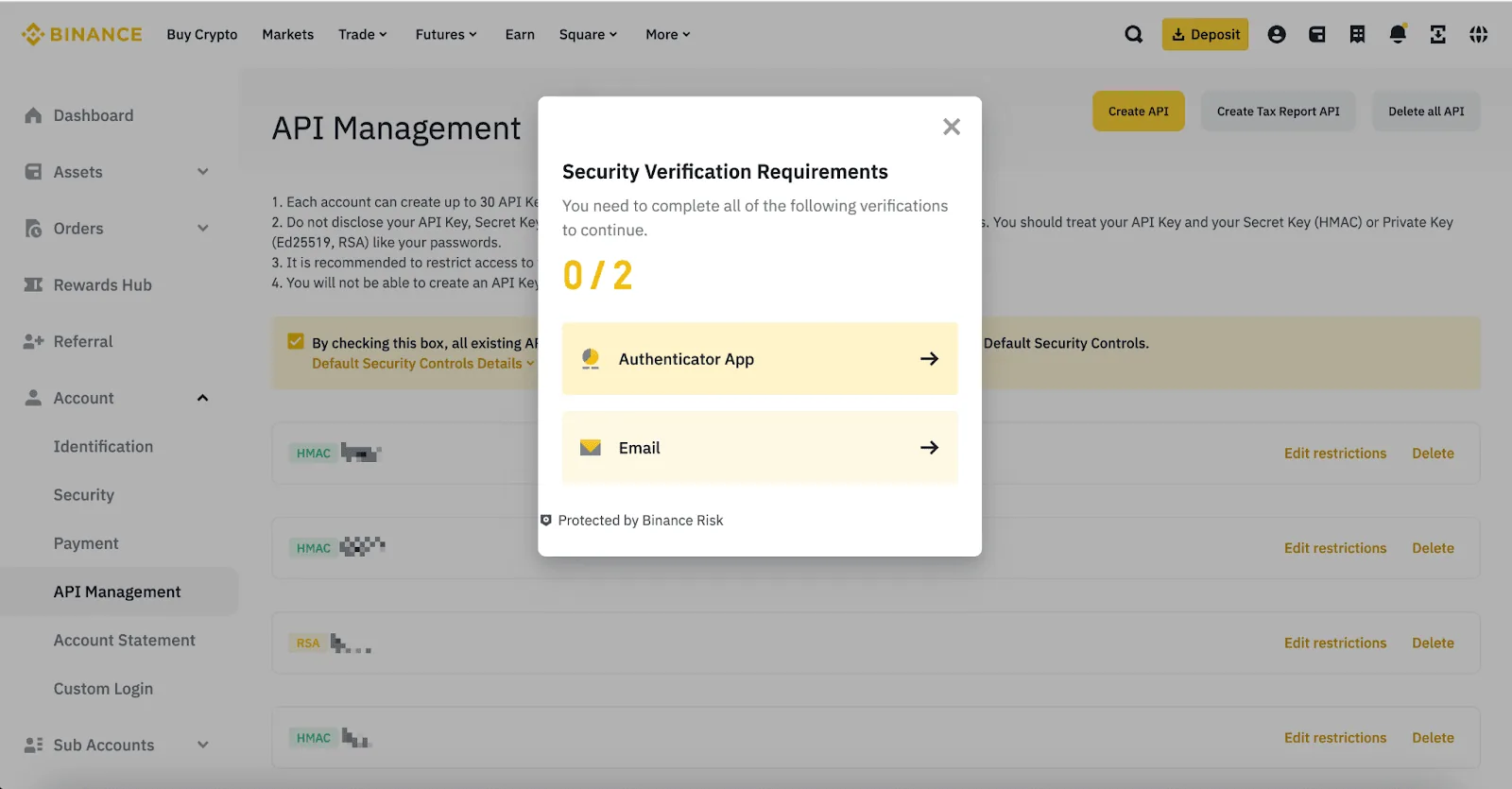
    Complete official security checks and save the generated key and secret together. Do not swap their fields or mix credential sets.

    Figure 5Complete security verification

    Use the required authenticator, email or passkey verification. The image shows the method selection.

    Enter codes and passwords only on the official exchange page. The available method depends on account security settings.

    Binance Complete security verification
  4. Step 4
    Restrict to a trusted fixed IP

    Edit permissions and restrict access to the deployment’s actual public egress IP. If HMAC trading cannot be selected, check IP and account prerequisites; do not disable default security restrictions.

    Figure 6Restrict access to trusted IPs

    Select Restrict access to trusted IPs only, enter the actual fixed deployment egress IP and save.

    Only the IP area is included. QR codes and credentials are excluded. The Unrestricted reference state is not used in this guide.

    Binance Restrict access to trusted IPs
  5. Step 5
    Save market permissions for your account type

    Keep read access and only required trading permissions. Use the correct classic or existing unified account reference. Disable withdrawals and unnecessary borrowing/transfers, then save and confirm security checks.

    Figure 7Classic-account permission reference

    Use this Edit permissions image only for the matching account type.

    Do not change account type to match it. Enable needed markets only; disable withdrawals and unnecessary funds permissions.

    Binance Classic-account permission reference

    Figure 8Unified-account permission reference

    For an existing unified account, check unified-account trading and the needed product permissions.

    This does not require an upgrade or prove live verification of every account mode.

    Binance Unified-account permission reference

Step 2: Enter the connection fields in SM FUND

  1. Open Settings and select Binance on the left, or click Add in its row under All exchanges.
  2. Enter an account name, then paste the dedicated credentials below. Preserve the original values without extra spaces, quotes or line breaks. Never mix keys, secrets or passphrases from different sets.
Form fieldWhat to enter
Account nameChoose a recognizable name, such as Arbitrage account
API keyThe API key generated by the exchange, not a UID
API secretThe secret from the same credential set as the key above
Common input mistakes

Use a supported system-generated key/secret set. There is no classic/unified selector in this form; the account type appears after verification.

For a new account, check the fields rather than the Replace button

The blank Replace form below only identifies credential fields for an existing account. A new account also needs an account name and Verify and save. Verify and replace updates credentials only for the same exchange account.

Binance connection fields in SM FUND
Figure 9 · SM FUND connection fields (blank form)

Step 3: Verify, save and check account data

  1. Once you trust this deployment, click Verify and save.

    Credentials are encrypted on the server and will not be shown again. Keep a secure backup before saving.

  2. Check the account identity, detected type, enabled products, private account stream and last sync time.

    Compare balances, positions and open orders with the same account and market on the exchange.

  3. If verification fails or keeps loading, record the redacted error code, time and target market.

    Check the credential set, IP, permissions and account environment first. Do not repeatedly add accounts, enable every permission or place orders to test connectivity.

What to check after connecting Binance

Check the detected account type, spot and USD-margined balances, positions, orders and sync time. For classic accounts, confirm futures was activated before the key was created. Portfolio Margin permission labels differ; do not upgrade or downgrade to match an image.

Exchange notes

Spot, USD-margined and coin-margined futures are different markets; this form lists USD-margined futures. Assets in an account do not imply available margin in that market. If classic-account futures permissions are unavailable, check futures activation and key creation dates before changing anything. Do not upgrade to a unified account to troubleshoot.

Connected details display Unified account (Portfolio Margin). This does not require new users to upgrade or establish that other modes were verified.

System-generated API

Bybit setup

Which permissions does this guide use?

The SM FUND form requires trading access without withdrawals. Keep necessary read access, enable trading only for the markets you need, and disable withdrawals. You can view public prices without adding an account.

Step 1: Create dedicated credentials on the exchange

Screenshots cover profile navigation, API Transaction, name/IP settings, security checks and credential saving. Read-only / unrestricted-IP examples are explicitly incomplete configurations.

  1. Step 1
    Open API Management on the website

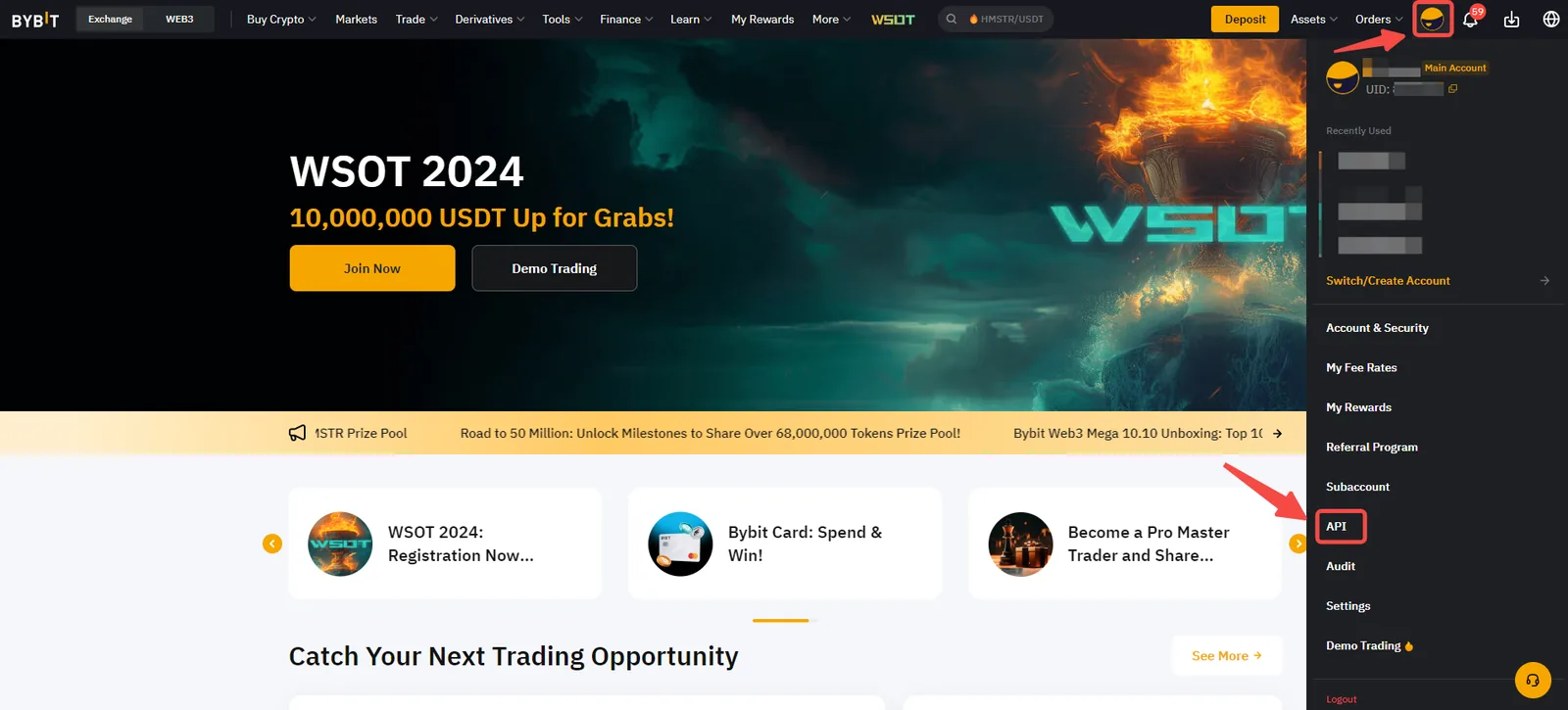
    Sign into the target mainnet account on the website: profile → API → API Management. The app cannot create keys. Newly registered accounts may be restricted for 48 hours. Testnet accounts and keys are separate.

    Figure 1API in the profile menu

    Use the top-right profile → API. Account identifiers in the original tutorial are masked.

    Bybit API in the profile menu

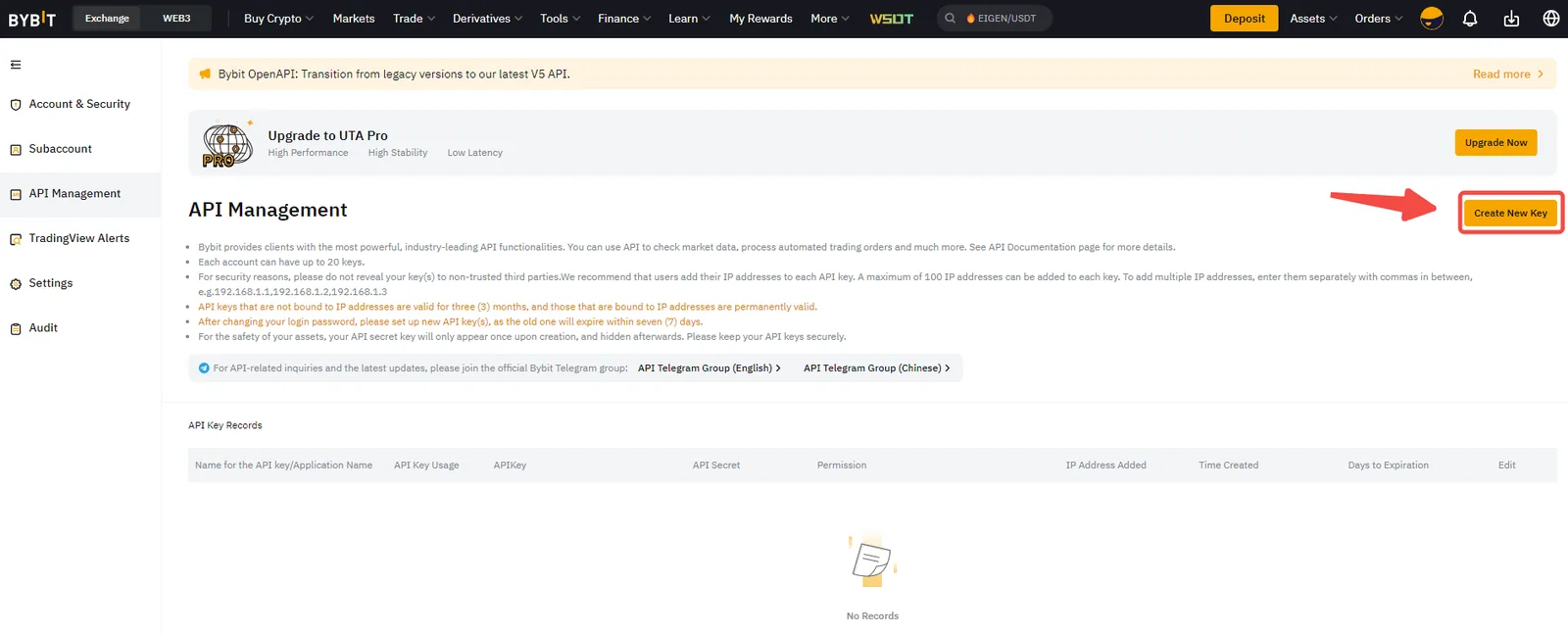
    Figure 2Create New Key

    The red box identifies the creation entry in API Management.

    Bybit Create New Key
  2. Step 2
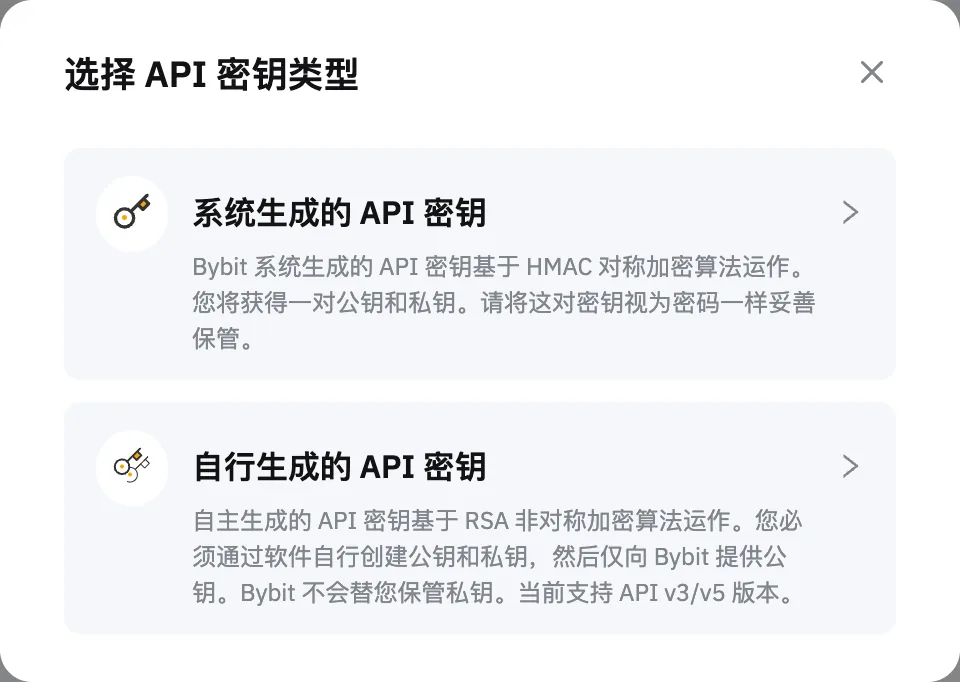
    Choose System-generated and API Transaction

    Click Create New Key, select System-generated and enter a purpose name. Use API Transaction for this manual key/secret integration.

    Figure 3Choose System-generated

    Create a system-generated key, then choose the required read/trading permissions.

    Bybit Choose System-generated

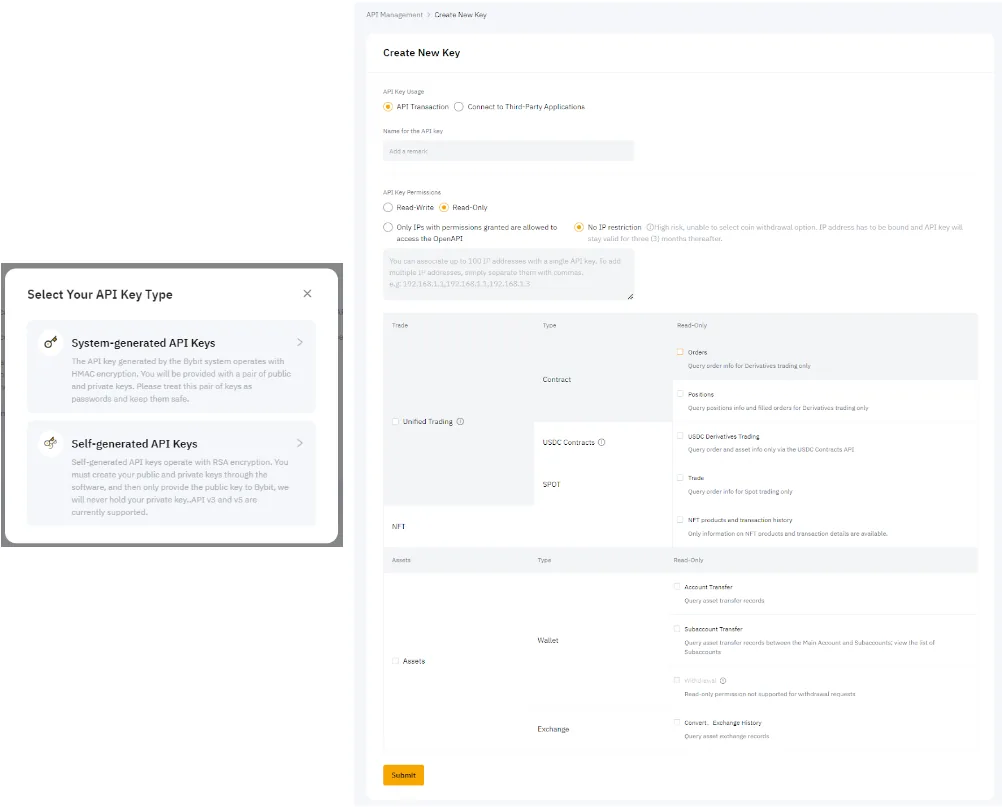
    Figure 4API Transaction, name, permissions and IP

    Choose API Transaction, enter a purpose name and configure required trading access and the trusted execution IP.

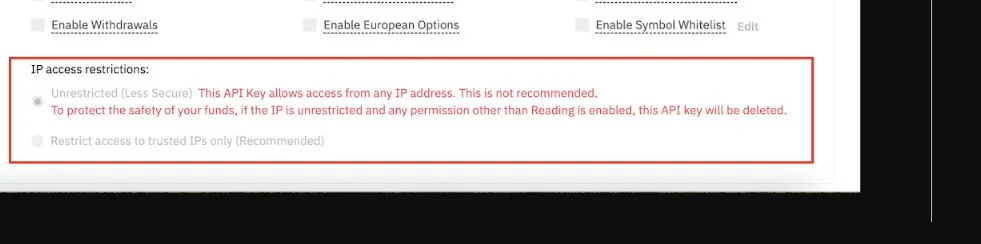
    The official example is incomplete and shows Read-Only / No IP restriction. Follow this guide’s read-write permissions and fixed-IP settings instead.

    Bybit API Transaction, name, permissions and IP
  3. Step 3
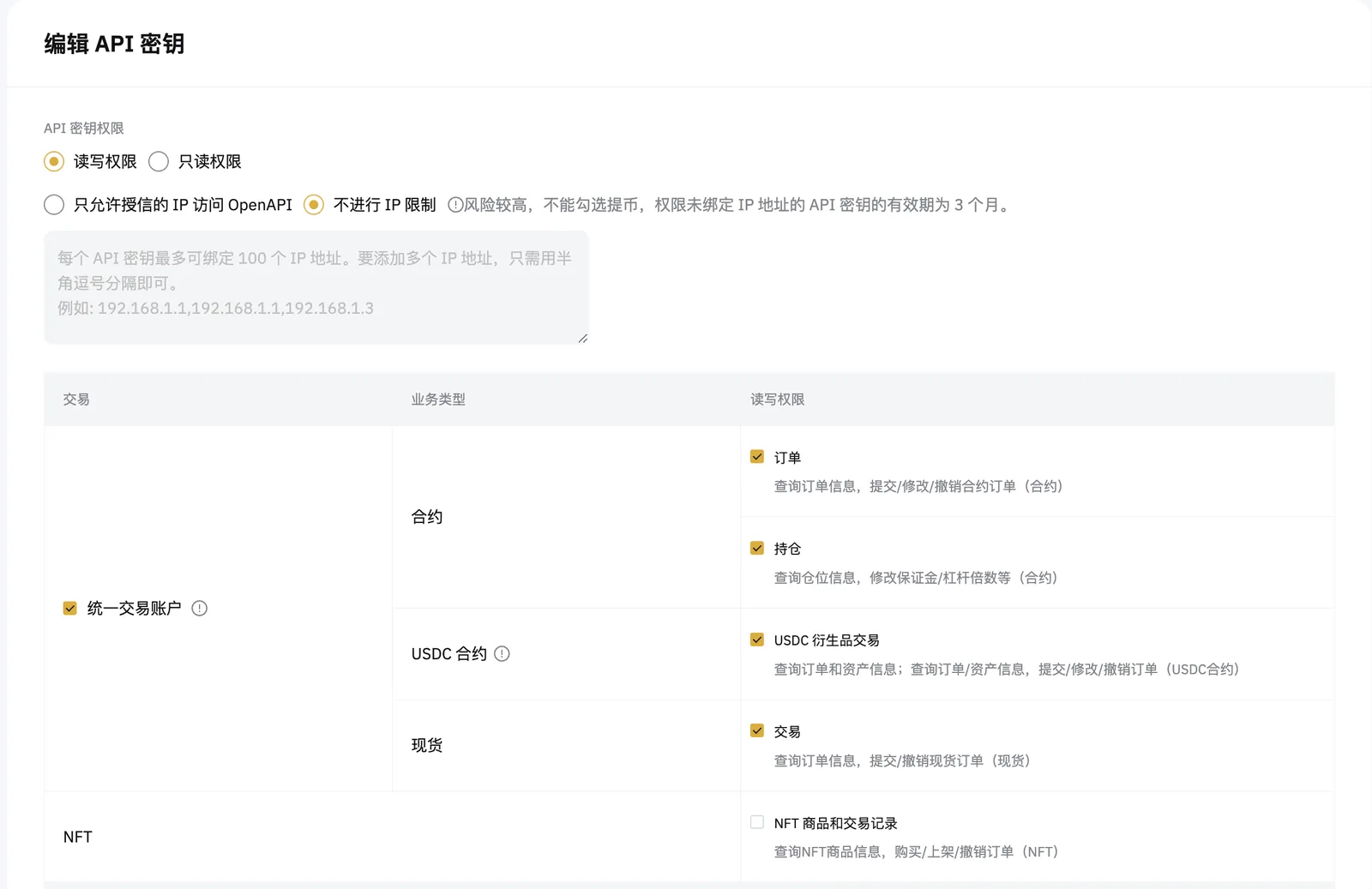
    Choose the required trading permissions

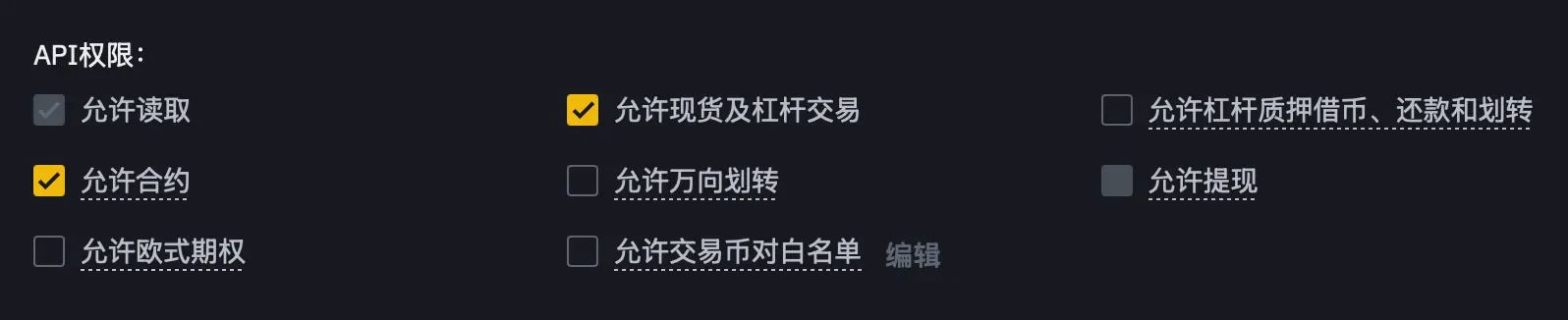
    Select Read-Write and only the needed orders, positions and/or spot trading permissions under Unified Trading. Assess transfers separately; disable withdrawals.

    Figure 5Unified Trading permissions

    Check required spot and derivatives order and position permissions.

    The example has no IP restriction. Use your trusted fixed execution egress IP instead.

    Bybit Unified Trading permissions
  4. Step 4
    Bind the trusted public egress IP

    Restrict access to specified IPs and enter the actual deployment egress IP. Do not copy the reference image’s unrestricted setting.

  5. Step 5
    Verify and save key/secret

    Review settings and complete required security checks. Save the key and secret together immediately; the official guide states the secret is displayed only once.

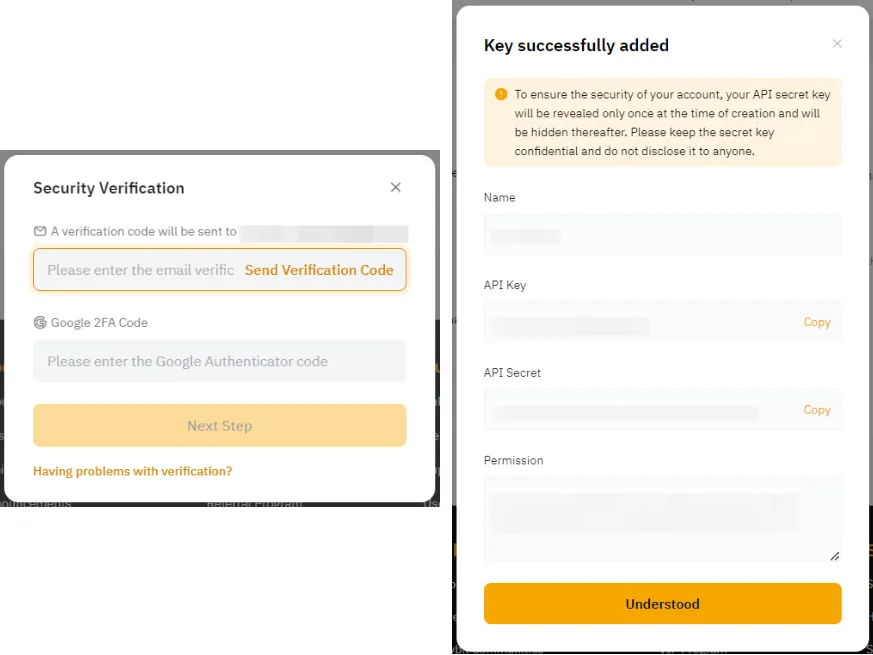
    Figure 6Security checks and Key successfully added

    The left shows email/Google 2FA fields; the right shows where to save the key/secret. Credentials are masked by the official source.

    Save your own matching key/secret set from the official page. Never copy tutorial values or send verification codes to support.

    Bybit Security checks and Key successfully added

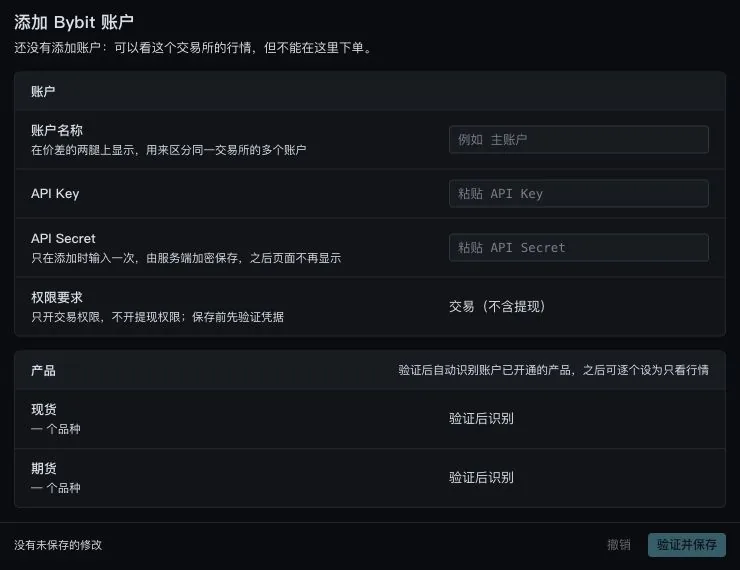
Step 2: Enter the connection fields in SM FUND

  1. Open Settings and select Bybit on the left, or click Add in its row under All exchanges.
  2. Enter an account name, then paste the dedicated credentials below. Preserve the original values without extra spaces, quotes or line breaks. Never mix keys, secrets or passphrases from different sets.
Form fieldWhat to enter
Account nameChoose a recognizable name, such as Arbitrage account
API keyThe API key generated by the exchange, not a UID
API secretThe secret from the same credential set as the key above
Common input mistakes

Use a matching key/secret set. The Futures label is local terminology and does not establish support for every delivery, margin or position mode.

Bybit connection fields in SM FUND
Figure 7 · SM FUND connection fields (blank form)

Step 3: Verify, save and check account data

  1. Once you trust this deployment, click Verify and save.

    Credentials are encrypted on the server and will not be shown again. Keep a secure backup before saving.

  2. Check the account identity, detected type, enabled products, private account stream and last sync time.

    Compare balances, positions and open orders with the same account and market on the exchange.

  3. If verification fails or keeps loading, record the redacted error code, time and target market.

    Check the credential set, IP, permissions and account environment first. Do not repeatedly add accounts, enable every permission or place orders to test connectivity.

What to check after connecting Bybit

Check mainnet identity, account type, spot/futures products and private-stream sync time against official balances, positions and orders. For an empty new account, confirm successful queries. Public prices do not verify private credentials.

Exchange notes

Use mainnet keys with mainnet accounts; keep testnet and demo separate. Cross, isolated and portfolio margin differ from one-way/hedge position modes. Compatibility with every mode has not been verified; do not switch modes just to connect.

The form detects account type and products after verification. Specific account or margin modes were not live-tested.

API v4

Gate setup

Which permissions does this guide use?

The SM FUND form requires trading access without withdrawals. Keep necessary read access, enable trading only for the markets you need, and disable withdrawals. You can view public prices without adding an account.

Step 1: Create dedicated credentials on the exchange

Screenshots cover profile navigation, creation, risk notices, funds password, 2FA, API v4/account/IP settings and module permissions. The final secret-saving page is excluded; back up credentials immediately after creation.

  1. Step 1
    Open API Management

    Sign into the intended Gate account: profile → API Management → Create API Key.

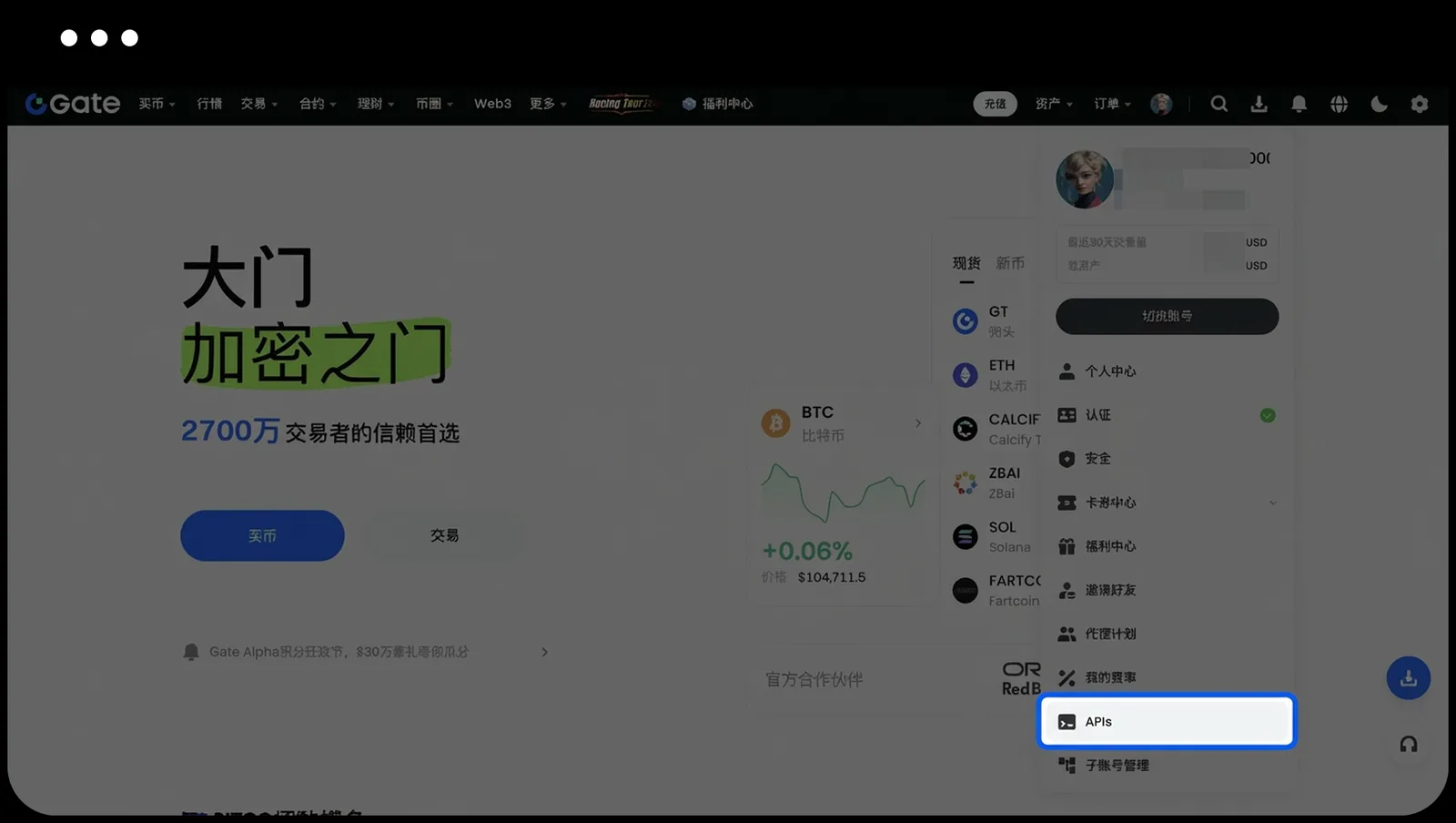
    Figure 1APIs in the profile menu

    Open the profile menu and locate APIs / API Management.

    The official image highlights the relevant entry.

    Gate APIs in the profile menu

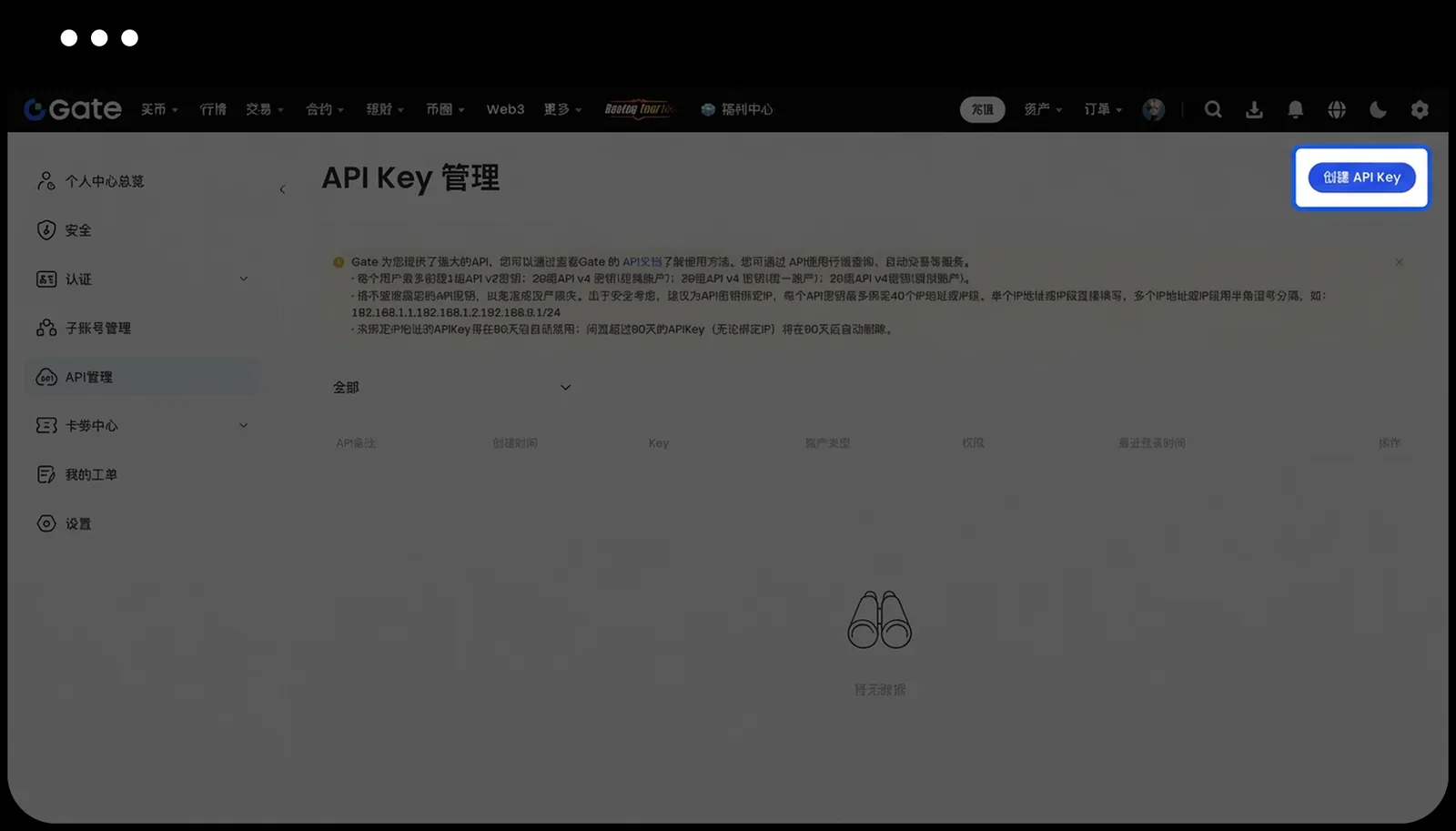
    Figure 2Create API Key

    Click Create API Key at the top right of API Key Management.

    Gate Create API Key
  2. Step 2
    Choose API v4 and the existing account type

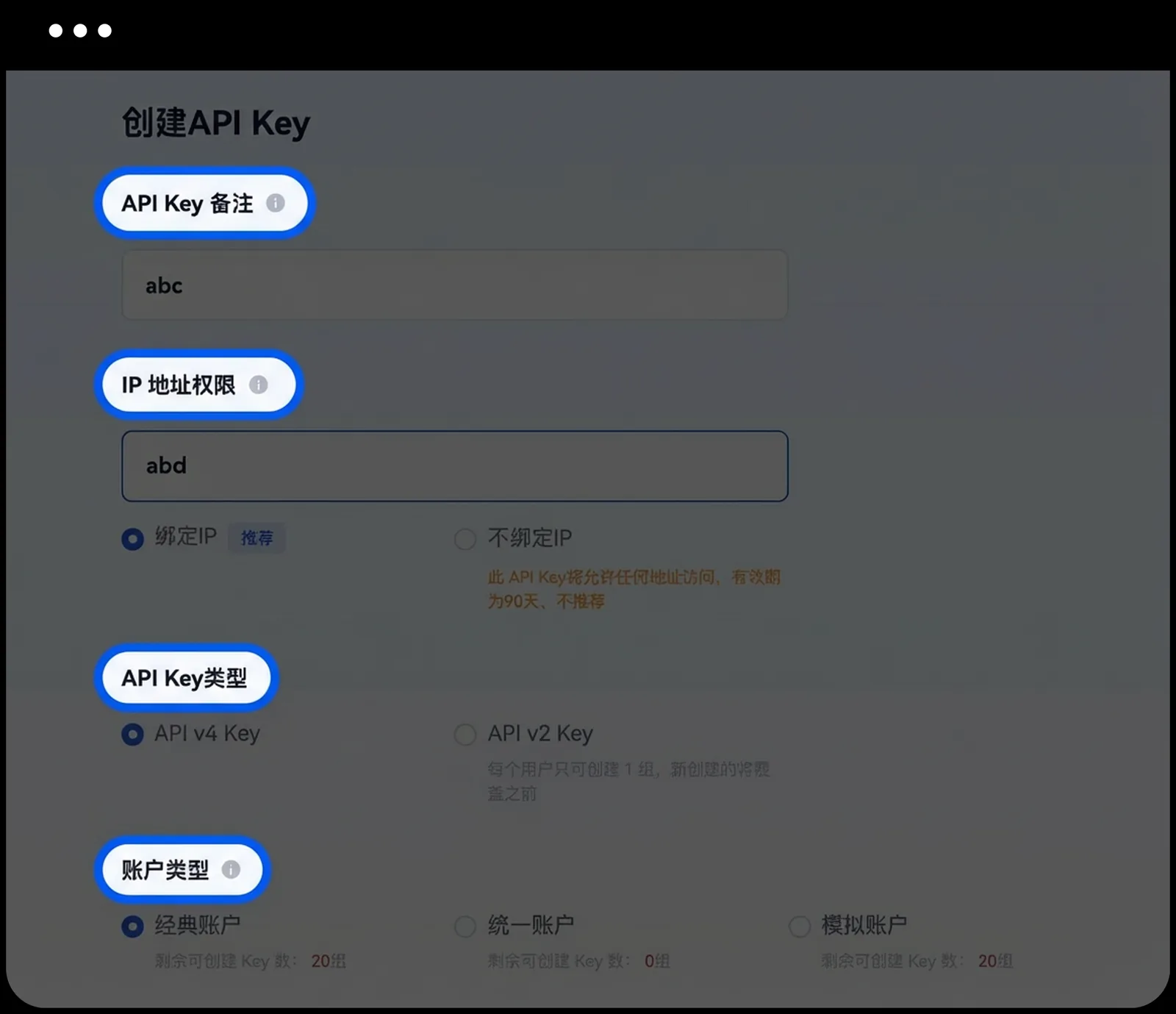
    Enter a purpose note and choose API v4 Key. Match the existing account type; classic, unified and demo are not interchangeable. Do not mix demo keys into this mainnet workflow.

    Figure 3API v4, account type and IP

    Choose API v4 Key, match the current account type and bind the actual execution IP.

    abc / abd are illustrative values; abd is not a valid IP. Do not copy them. The official image dims other areas; open the original for detail.

    Gate API v4, account type and IP
  3. Step 3
    Bind a fixed public egress IP

    Enable IP binding and use the fixed public IP actually sending requests. Do not copy example values.

  4. Step 4
    Set necessary module permissions

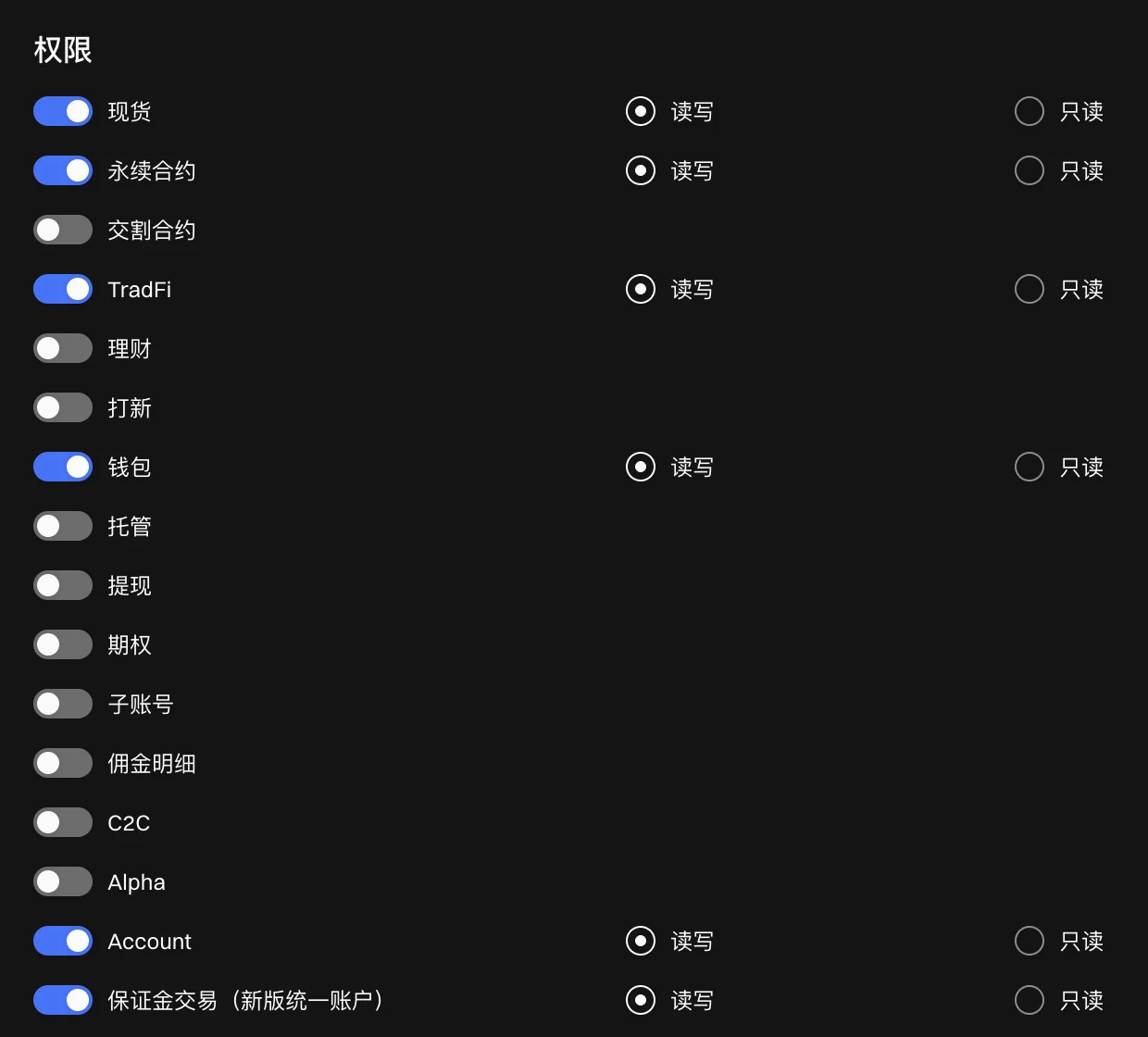
    Enable read and required read-write trading permissions for needed spot/perpetual modules. Review account/wallet reads against actual errors. Disable withdrawals and do not copy unnecessary TradFi, borrowing or transfers.

    Figure 4Module read/write permissions

    Choose required spot/perpetual module permissions. Use the preceding form for account and API type.

    TradFi, wallet, Account and margin modules shown are not universally required. Withdraw is outside this image; verify it is disabled in the full form.

    Gate Module read/write permissions
  5. Step 5
    Review risk notices and security checks

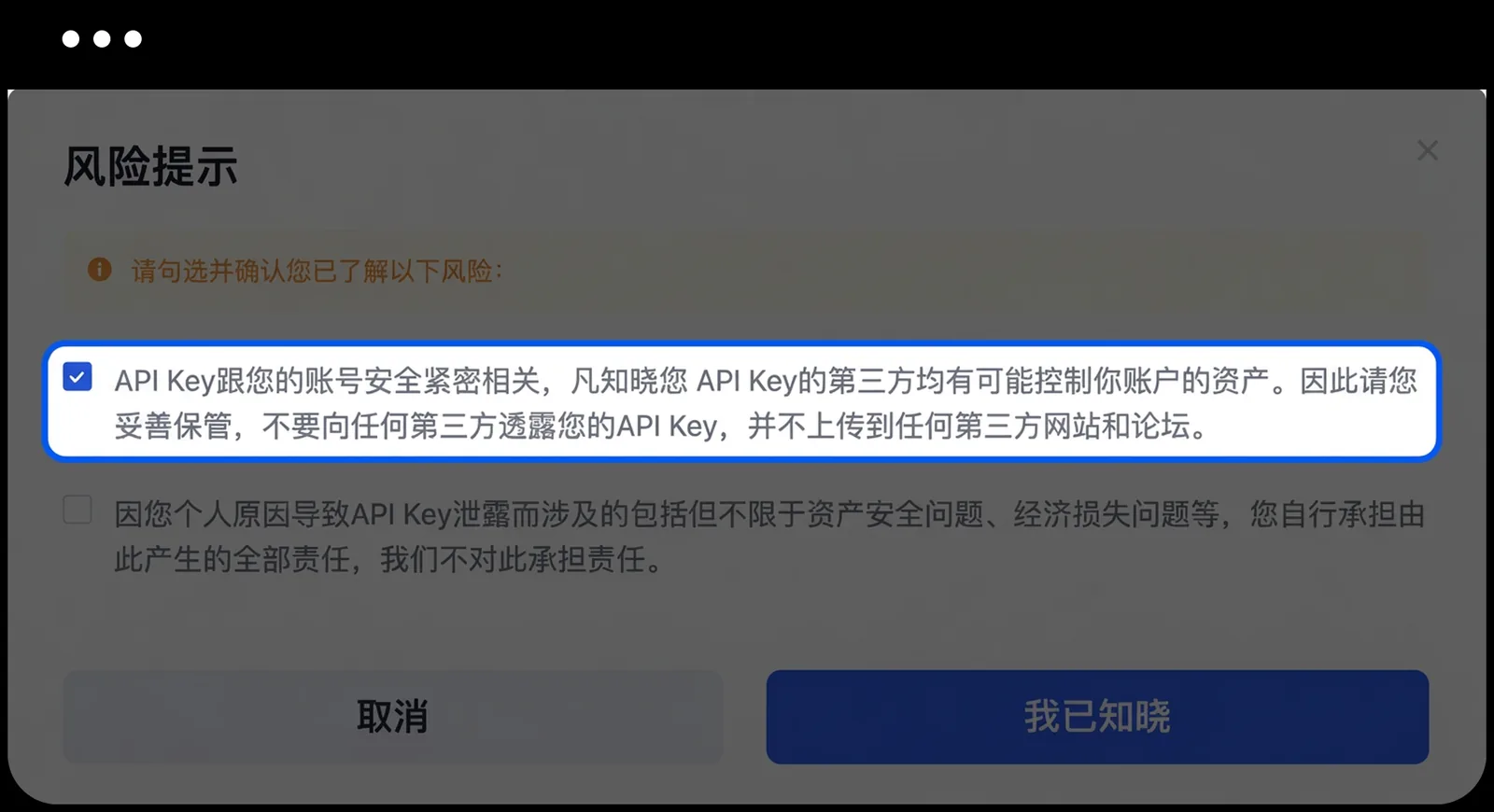
    Review settings, submit and personally complete the risk notice, funds password and required second verification.

    Figure 5Risk notice after submission

    Review the settings and risk notice yourself before choosing whether to continue.

    The image only identifies the real interface. No terms were accepted, risk notice confirmed or API created for this guide.

    Gate Risk notice after submission

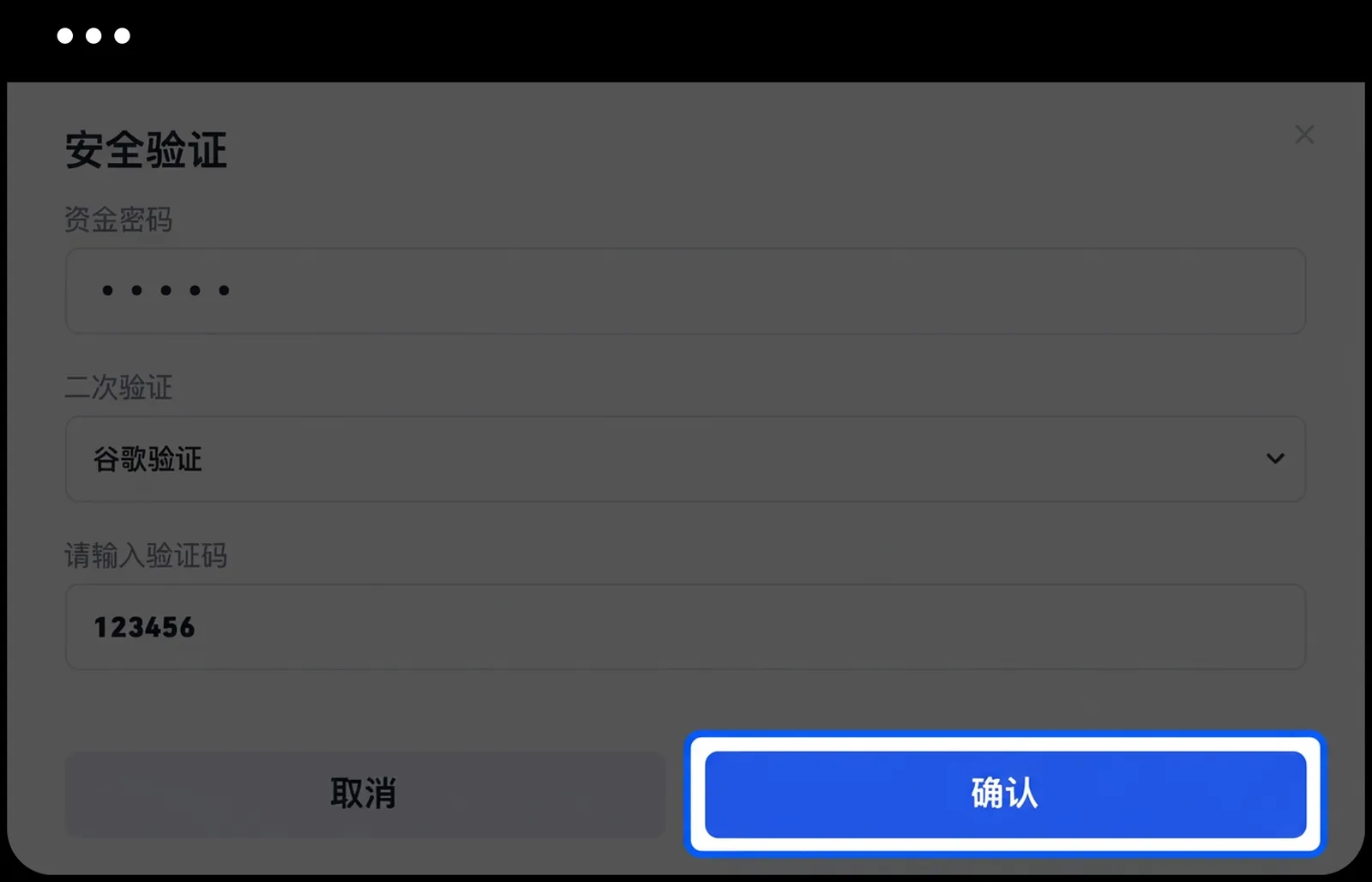
    Figure 6Funds password and second verification

    The official example shows funds password and second-factor verification fields before creation.

    123456 is an illustrative code, not a working code. Enter only your current verification information on the official page.

    Gate Funds password and second verification
  6. Step 6
    Save the key and secret together

    Immediately save both generated values in a trusted encrypted store. A key alone is insufficient. If the secret is lost, check whether the official page can reveal it; otherwise create dedicated credentials again.

Step 2: Enter the connection fields in SM FUND

  1. Open Settings and select Gate on the left, or click Add in its row under All exchanges.
  2. Enter an account name, then paste the dedicated credentials below. Preserve the original values without extra spaces, quotes or line breaks. Never mix keys, secrets or passphrases from different sets.
Form fieldWhat to enter
Account nameChoose a recognizable name, such as Arbitrage account
API keyThe API key generated by the exchange, not a UID
API secretThe secret from the same credential set as the key above
Common input mistakes

Use API v4 key/secret credentials. Enable only needed products; assess CrossEx, stock contracts and regular spot/futures separately.

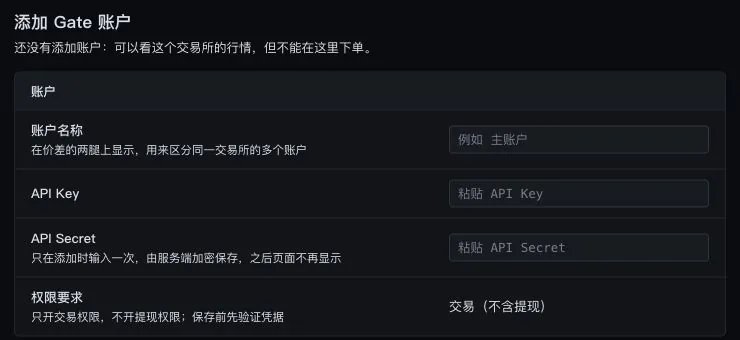
Gate connection fields in SM FUND
Figure 7 · SM FUND connection fields (blank form)

Step 3: Verify, save and check account data

  1. Once you trust this deployment, click Verify and save.

    Credentials are encrypted on the server and will not be shown again. Keep a secure backup before saving.

  2. Check the account identity, detected type, enabled products, private account stream and last sync time.

    Compare balances, positions and open orders with the same account and market on the exchange.

  3. If verification fails or keeps loading, record the redacted error code, time and target market.

    Check the credential set, IP, permissions and account environment first. Do not repeatedly add accounts, enable every permission or place orders to test connectivity.

What to check after connecting Gate

Confirm API v4 and the account type, then check private streams, balances, positions and orders for spot and futures separately. If only futures fails, review module permissions, settlement currency and mode. Spot success does not verify the entire connection.

Exchange notes

Gate futures quantity may be expressed in contracts; convert using the contract multiplier. For RISK_LIMIT_EXCEEDED, check positions and limits first rather than raising limits immediately.

Verification detects account type and enabled products. A listed module does not establish permission or completed trading tests.

System-generated API

Bitget setup

Which permissions does this guide use?

The SM FUND form requires trading access without withdrawals. Keep necessary read access, enable trading only for the markets you need, and disable withdrawals. You can view public prices without adding an account.

Step 1: Create dedicated credentials on the exchange

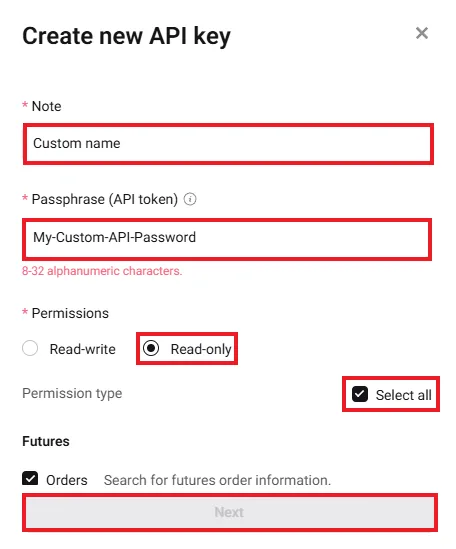
Screenshots cover API keys, Create API key, Note / Passphrase, the official IP field and key/secret saving. Third-party read-only examples differ from SM FUND read-write requirements. The older official form illustrates field names only.

  1. Step 1
    Find API keys and start creation

    Sign into the intended account: profile → API Management → Create API key. If a subaccount has no creation entry, ask its administrator to check API Key Management permission; do not substitute main-account credentials.

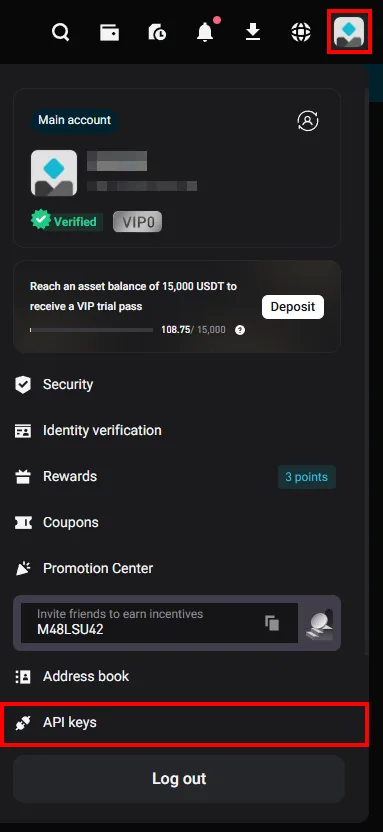
    Figure 1API keys in the profile menu

    Locate API keys and first confirm the correct main/subaccount.

    Bitget API keys in the profile menu

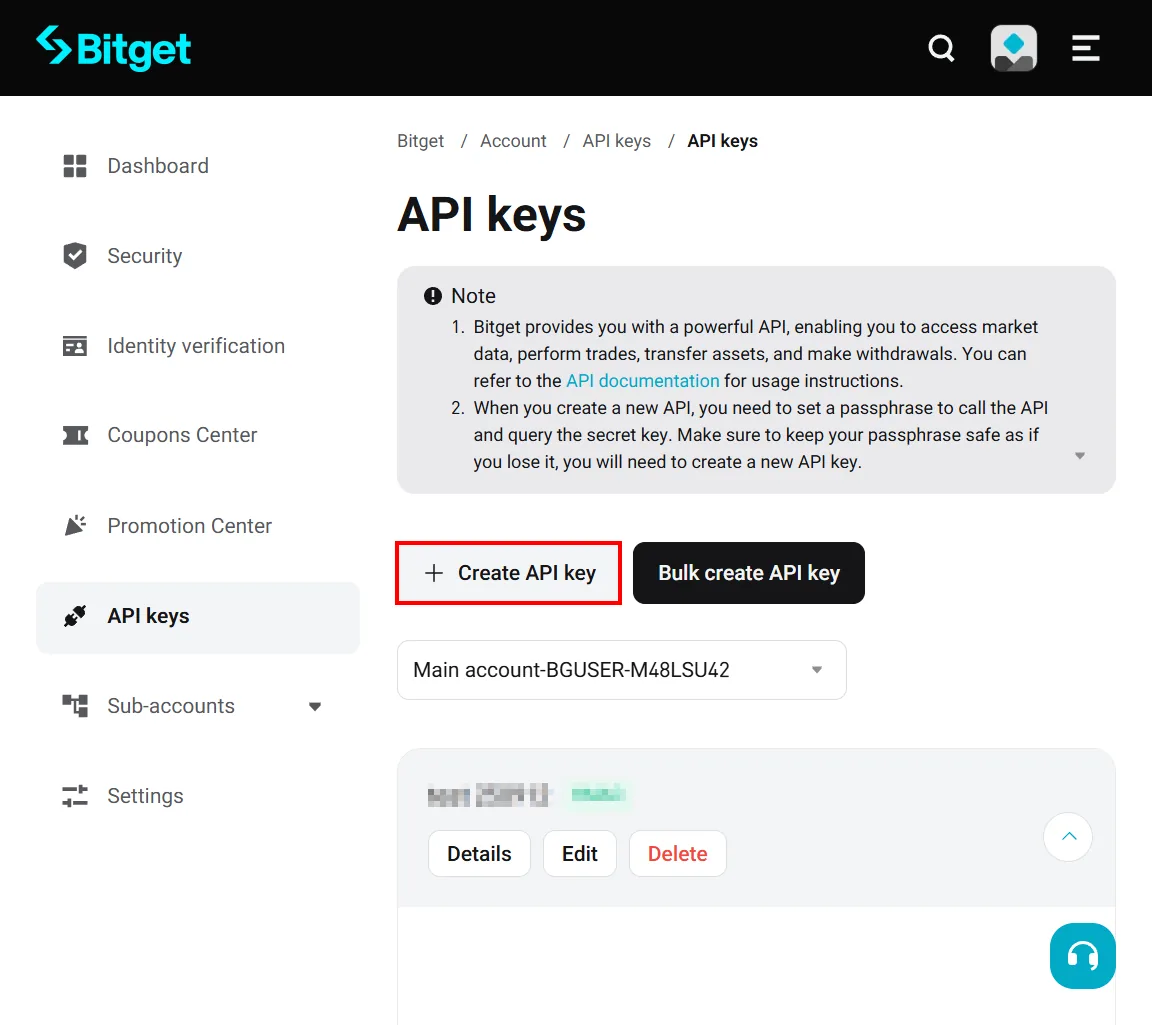
    Figure 2Click Create API key

    Choose + Create API key and confirm the selected account.

    Account names are tutorial examples. This guide does not use Bulk create.

    Bitget Click Create API key
  2. Step 2
    Choose System-generated, a note and passphrase

    Choose a system-generated key, enter a purpose note and securely record the chosen API Passphrase. It is not your login password and cannot be recovered if lost.

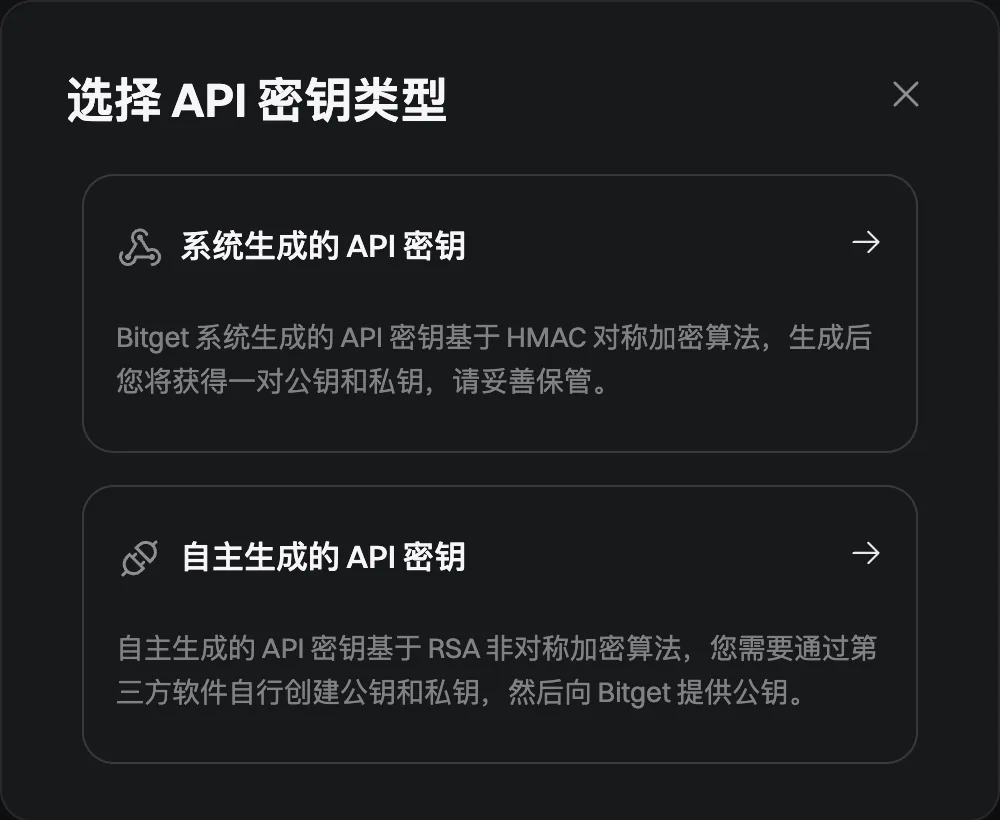
    Figure 3Choose a system-generated key

    Select System-generated and prepare your own API Passphrase.

    Bitget Choose a system-generated key

    Figure 4Enter Note and Passphrase

    Enter a purpose note and securely save your own API Passphrase.

    The source tutorial is for a read-only asset tool. Do not copy Read-only, Select all or its example passphrase; use the next step’s required read-write permissions.

    Bitget Enter Note and Passphrase
  3. Step 3
    Configure required read-write permissions

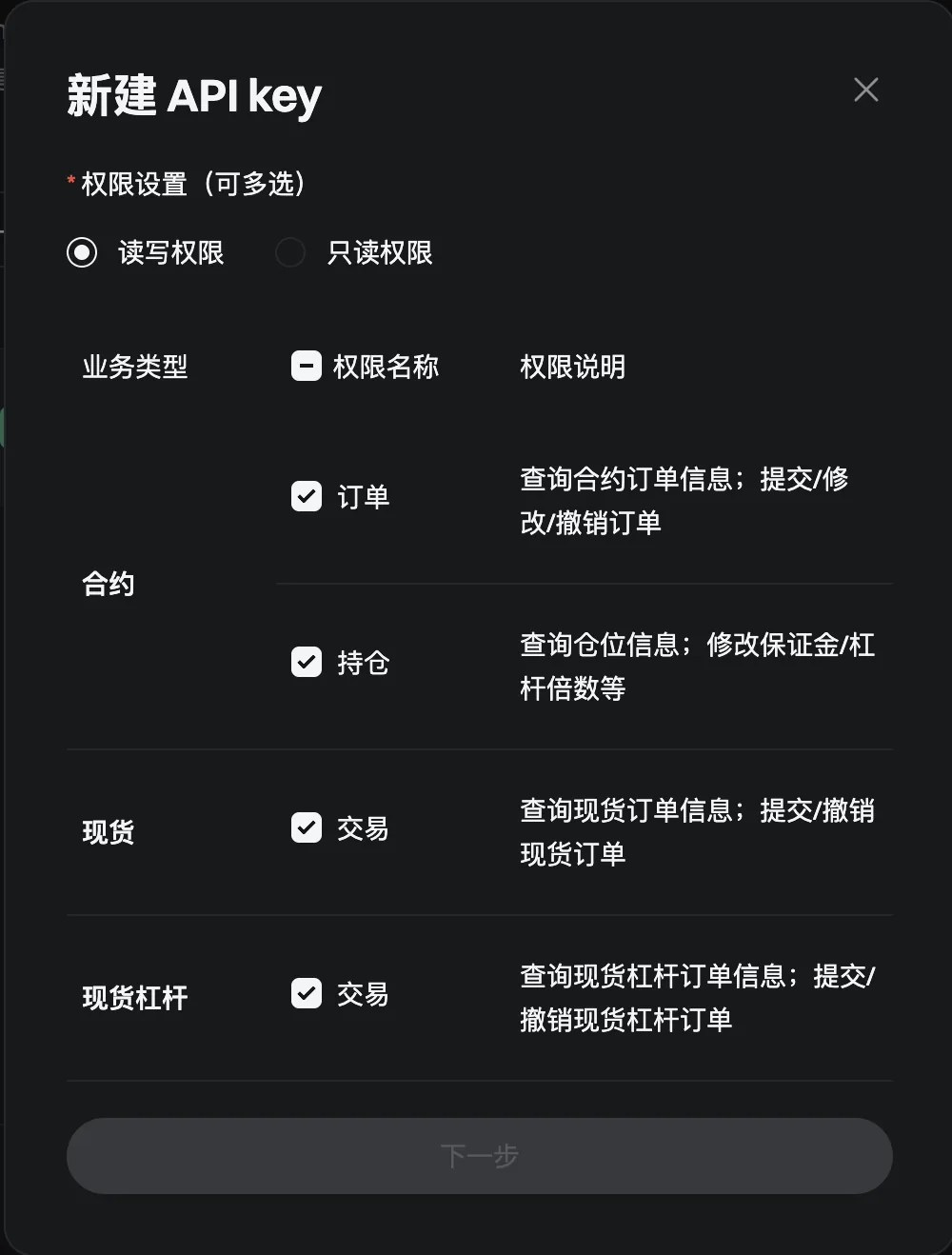
    Enable only required spot/futures markets. Use the reference for your existing classic/unified account. Spot margin is not required for regular spot. Disable withdrawals and unnecessary transfers/repayments.

    Figure 5Classic-account spot/futures permissions

    Check needed contract orders/positions and spot markets.

    The example also selects spot margin, which regular spot does not require. Do not change account type to match it.

    Bitget Classic-account spot/futures permissions

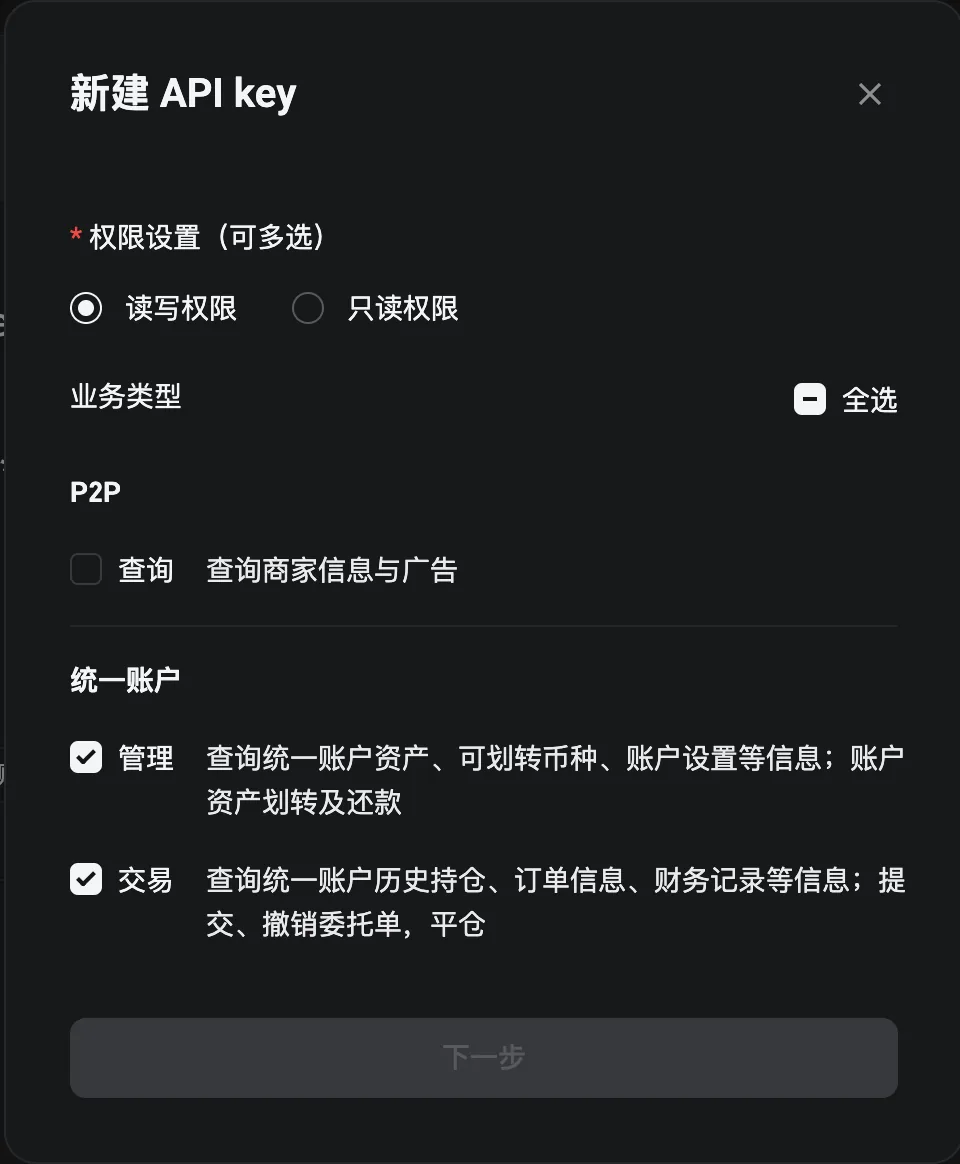
    Figure 6Unified-account permissions

    For an existing unified account, inspect Management and Trading permissions separately.

    Management may include transfers and repayments. Do not enable them just because the image does, or use Select all to troubleshoot.

    Bitget Unified-account permissions
  4. Step 4
    Bind the fixed IP and verify

    Bind the deployment’s actual public egress IP, review settings and complete official security verification.

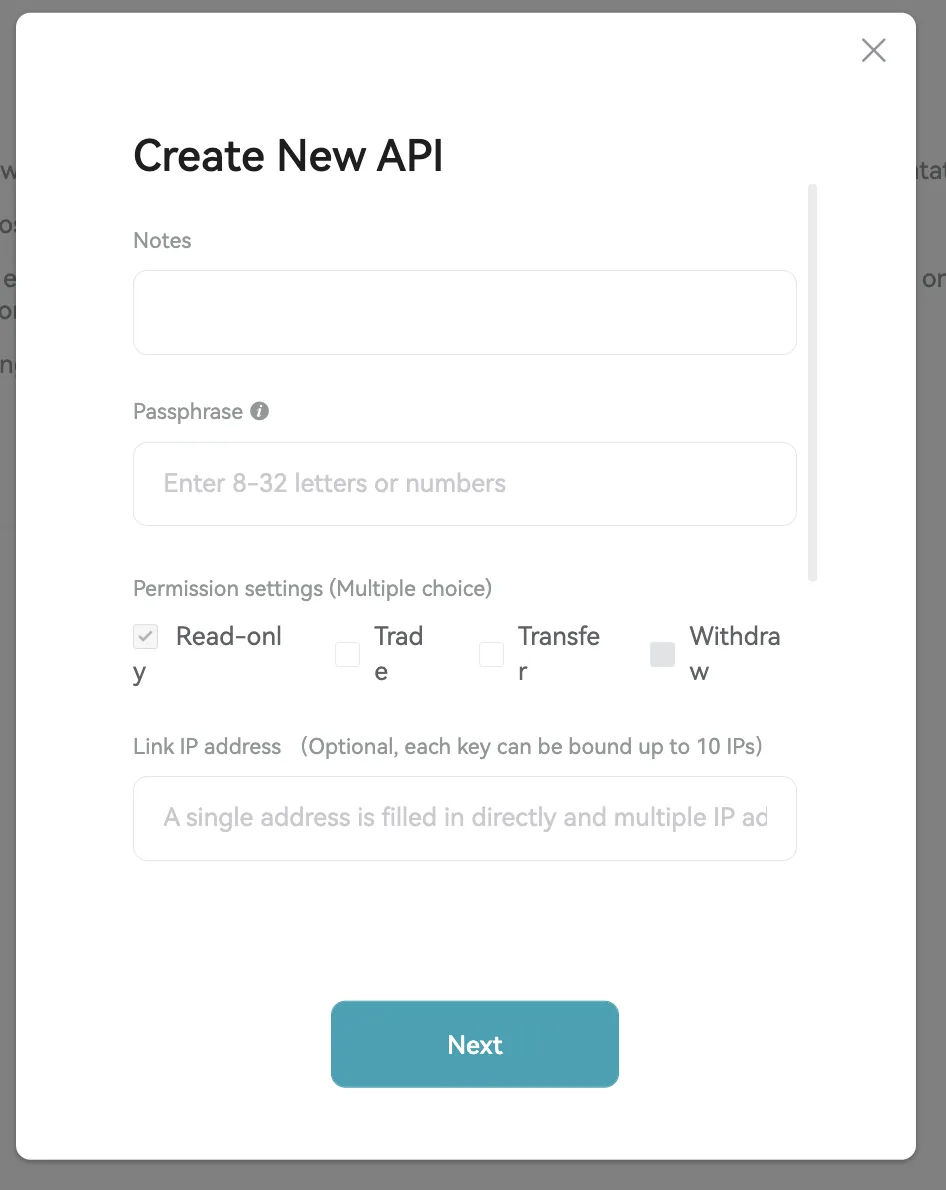
    Figure 7Official IP binding field

    Enter the actual fixed deployment egress IP under Link IP address. Newer forms may call it IP binding or allowlist.

    This is a 2023 official form for identifying Notes / Passphrase / Link IP only. Use the appropriate newer permission images; do not adopt old parameter limits.

    Bitget Official IP binding field
  5. Step 5
    Save the key, secret and passphrase

    Keep the generated key and secret with the Passphrase chosen for that set. All three must match; do not substitute your account password.

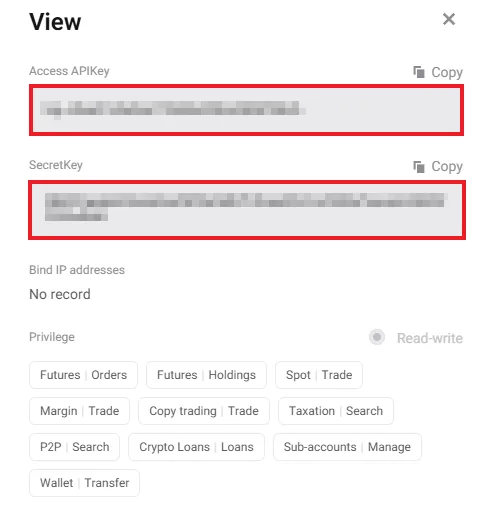
    Figure 8Where to save Access APIKey and SecretKey

    Save both values from your official page together with the Passphrase.

    Values are masked. No record for IP and broad permission labels are not recommended settings.

    Bitget Where to save Access APIKey and SecretKey

Step 2: Enter the connection fields in SM FUND

  1. Open Settings and select Bitget on the left, or click Add in its row under All exchanges.
  2. Enter an account name, then paste the dedicated credentials below. Preserve the original values without extra spaces, quotes or line breaks. Never mix keys, secrets or passphrases from different sets.
Form fieldWhat to enter
Account nameChoose a recognizable name, such as Arbitrage account
API keyThe API key generated by the exchange, not a UID
API secretThe secret from the same credential set as the key above
PassphraseThe API passphrase chosen when creating this key set
Common input mistakes

Use one matching key, secret and API Passphrase set. Check classic/unified detection after verification; do not upgrade to match a tutorial.

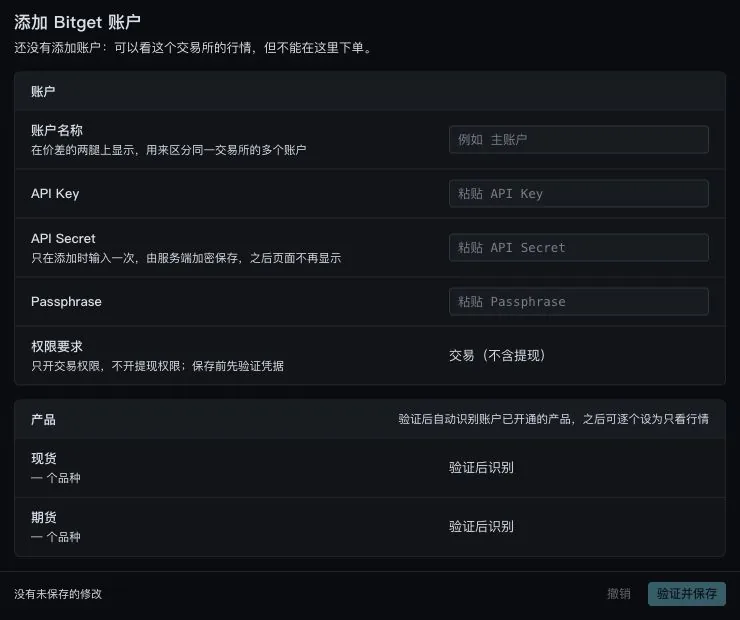
Bitget connection fields in SM FUND
Figure 9 · SM FUND connection fields (blank form)

Step 3: Verify, save and check account data

  1. Once you trust this deployment, click Verify and save.

    Credentials are encrypted on the server and will not be shown again. Keep a secure backup before saving.

  2. Check the account identity, detected type, enabled products, private account stream and last sync time.

    Compare balances, positions and open orders with the same account and market on the exchange.

  3. If verification fails or keeps loading, record the redacted error code, time and target market.

    Check the credential set, IP, permissions and account environment first. Do not repeatedly add accounts, enable every permission or place orders to test connectivity.

What to check after connecting Bitget

Compare detected account/products, private-stream status, balances, positions and orders with the same exchange account. For signature failures, check the credential trio, passphrase, IP and server time before adding any funds permissions.

Exchange notes

A lost Passphrase cannot be recovered; recreate dedicated credentials under official rules. Classic and unified permission areas differ. Management can include transfers and repayments; do not select everything. Separately verify spot market-buy quantity units before live trading.

Account type is detected during verification. The form has no account-mode or one-way/hedge selector.

V3 API wallet

Aster setup

Step 1: Create dedicated credentials on the exchange

Screenshots cover Pro API authorization, naming, Generate and safe IP/Authorize details. Permissions and validity use masked reference images. No main-wallet signing dialog or completed authorization-list walkthrough is included.

  1. Step 1
    Open the mainnet API wallet and Pro API

    Connect the intended trading main wallet in the official Aster app, confirm the account and official activation prerequisites. This integration uses a V3 API wallet.

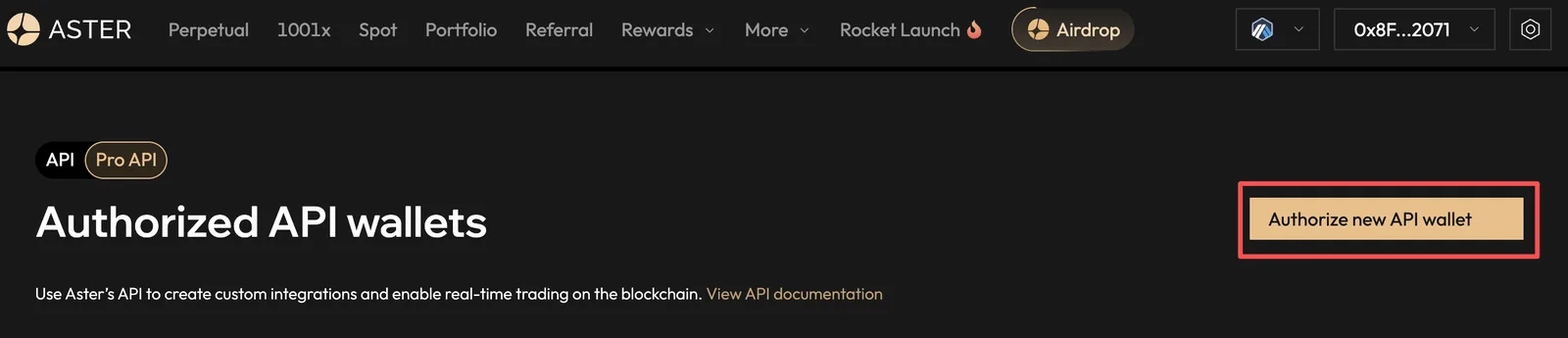
    Figure 1Pro API → Authorize new API wallet

    Find Authorize new API wallet under Pro API.

    This is a public tutorial’s connected-wallet view. No wallet connection, authorization or account changes were performed for this guide.

    Aster Pro API → Authorize new API wallet
  2. Step 2
    Generate and save a dedicated private key

    Choose Authorize new API wallet, name and generate the dedicated address, and securely save its private key. Do not use the main-wallet key or seed phrase.

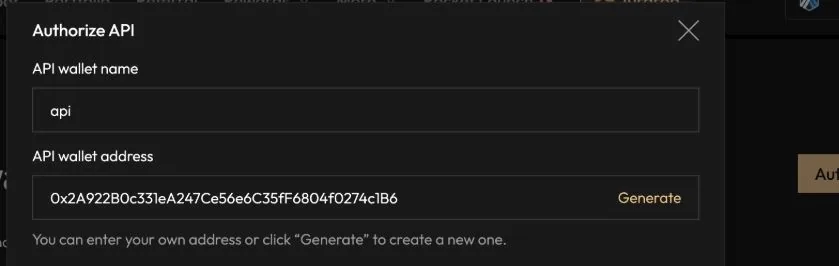
    Figure 2API wallet name and Generate

    Enter a separate wallet name and click Generate. The private-key display area is excluded.

    The 0x address is an example API wallet address. Do not copy it or use a main-wallet private key.

    Aster API wallet name and Generate

    Figure 3Generation, permissions and validity

    Save the dedicated private key, select needed spot/perpetual permissions and confirm authorization.

    Addresses and private keys are masked by the source. The example validity and dual-market selection are not mandatory. Keep withdrawals disabled.

    Aster Generation, permissions and validity
  3. Step 3
    Review permissions, validity and IP

    Select only needed spot/perpetual permissions and disable withdrawals. Choose supported validity and IP restrictions for your needs using the real deployment egress IP, not reference values.

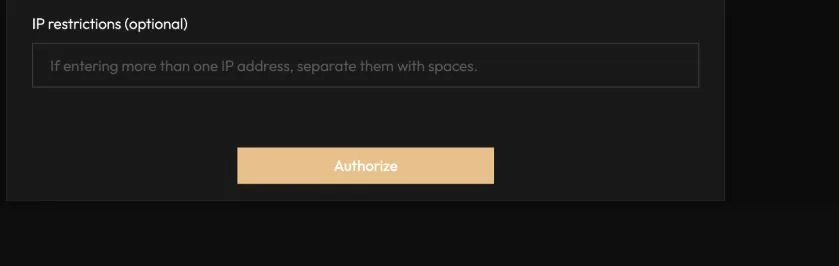
    Figure 4IP restrictions and Authorize

    Configure IP restrictions as needed, confirm the private key is safely stored and authorize with the main wallet.

    This detail excludes the full private key. If newer permission controls are missing from the reference, follow the permission image and current official page.

    Aster IP restrictions and Authorize
  4. Step 4
    Sign and confirm authorization

    Confirm the dedicated key is saved, check the official domain and signature details, and authorize with the main wallet. Verify the wallet is listed and unexpired. Generating a private key alone does not authorize it.

Step 2: Enter the connection fields in SM FUND

  1. Open Settings and select Aster on the left, or click Add in its row under All exchanges.
  2. Enter an account name, then paste the dedicated credentials below. Preserve the original values without extra spaces, quotes or line breaks. Never mix keys, secrets or passphrases from different sets.
Form fieldWhat to enter
Account nameChoose a recognizable name, such as Arbitrage account
API wallet private keyThe private key of an authorized dedicated API wallet, not the main wallet key
Common input mistakes

Enter only an authorized dedicated API wallet private key. There are no user/signer fields. An older deployment accepting only key/secret needs V3 compatibility review first. On account detection failure, contact support with a redacted error; never enter your main-wallet key.

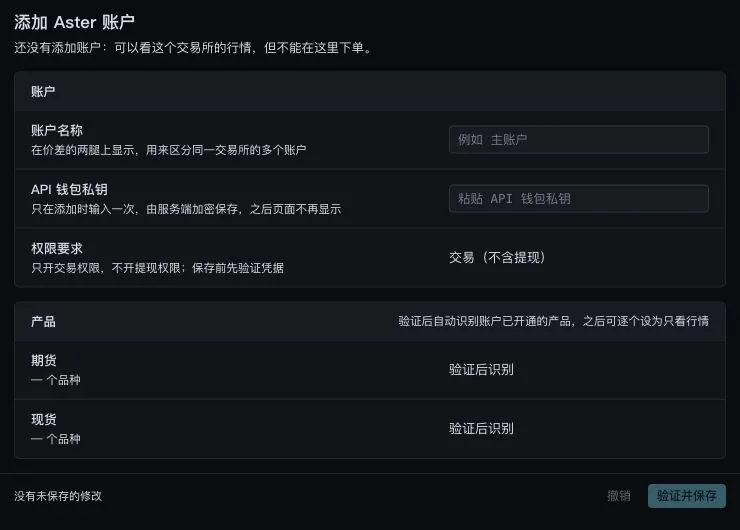
Aster connection fields in SM FUND
Figure 5 · SM FUND connection fields (blank form)

Step 3: Verify, save and check account data

  1. Once you trust this deployment, click Verify and save.

    Credentials are encrypted on the server and will not be shown again. Keep a secure backup before saving.

  2. Check the account identity, detected type, enabled products, private account stream and last sync time.

    Compare balances, positions and open orders with the same account and market on the exchange.

  3. If verification fails or keeps loading, record the redacted error code, time and target market.

    Check the credential set, IP, permissions and account environment first. Do not repeatedly add accounts, enable every permission or place orders to test connectivity.

What to check after connecting Aster

Verify the API wallet is authorized for the intended main account and unexpired. Compare spot/futures balances, positions, orders and sync time. This form has no user / signer inputs. Retain redacted detection errors. For -5050, review the official deposit prerequisite and decide your next step; never substitute the main-wallet private key.

Exchange notes

Aster recommends V3 for new integrations; creating V1 keys has been unsupported since 2026-03-25. Old keys differ from V3 API wallets. This guide does not deposit funds. Since 2026-09-01, relevant V3 private account/trading endpoints require a deposit by the linked main wallet. For -5050, check that requirement rather than repeatedly recreating keys.

Detected during verification. The current form has no main-account user or agent signer address fields.

Verify account data before trading

How to confirm the connection is ready

Where to lookWhat passes the checkFirst response to a problem
Account type and nameCorrect account and environment, without mixing main and subaccountsCheck credential origin; do not substitute another account’s keys
Private account stream / last syncVisible status and a recent sync timeDisconnected, failed or endlessly loading is not a successful read
Balances, positions and open ordersMatch the exchange for the same account, market and currency basisTotal equity is not available balance. Distinguish empty data from a failed read
Products / trading allowedOnly the needed products that the account actually supportsPrice-only products cannot be trading legs. Do not add permissions blindly
Execution stateNo orders or strategies started just to verify connectivityCheck remote instances, strategy switches and exchange open orders
Three switches with different jobs

Account Enable controls synchronization; product Allow trading controls eligibility as a trading leg; spread Enable strategy controls automatic rule execution. A connected account does not mean trading is active or two-leg execution is verified.

Before live trading, check again

  • A/B accounts, products, native symbols, directions and quantity units.
  • Both contract multipliers, increments, minimum notionals and executable depth.
  • Batch amount, position cap, margin, fees, funding and exit costs.
  • How to stop new actions, query orders and handle exposure after a leg fails, times out or partly fills.

Check direction before rules

A is the buy leg; B is the sell leg

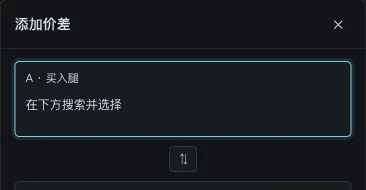
SM FUND Add spread: A buy leg and swap control
Detail of the Add spread form
A · Buy leg

Buy when opening

Choose the account, market and native symbol. Selling regular spot requires existing inventory or a separately verified borrowing path.

B · Sell leg

Sell when opening

Swap legs exchanges A and B. Legs may use different exchanges, products or assets; different assets are not a complete hedge.

From watchlist to rules

  1. Click + Add spread, select A and B, and check each account, product and native symbol.
  2. Add to watchlist and Add and set rules are different actions. Creating a watchlist entry does not complete trading verification.
  3. Click a card name for details. Its quotes show A buy / B sell; review rules under Edit strategy.
  4. Check Difference / Ratio and units before setting entry and exit thresholds. In ratio mode the reversion ratio changes the threshold basis; do not copy values between bases.
Action or settingMeaning in the interfaceWhat to check
Enable strategyTrade automatically according to rulesMay place real orders; do not enable it to test connectivity
Single roundPause after one complete entry and exitMay involve multiple batches, not one order
Open to capManually open from the card toward the position capNot a minimum-size test order
Close positionTrading action to close this spread’s positionVerify actual fills and remaining positions
Block entry / block signal exitBlock entry pauses opening; block exit pauses signal-based closingStop loss and forced risk reduction still apply when signal exits are blocked
Position cap / batch amountNotional cap of the larger leg / amount range per batchThe cap limits entries only; both exchange minimums must also be met
First-leg preferenceAuto / A first / B firstBoth legs are not guaranteed to fill fully at the same time
Close all and resetAccount-wide cleanup action in SettingsNever use it to reconnect or dismiss a message
Pausing, canceling and closing are different actions

Pausing rules does not cancel old orders or clear positions and loans. Closing the page does not stop a remote service. Verify positions, orders and liabilities on the exchange before resuming.

Reference as you go

55 everyday questions

55 questions

Connection and security

Can I start arbitrage as soon as the API connects?

First verify the private stream, account type, product switches, balances, positions and orders. Then check A buy / B sell, quantity units, minimums, position cap and batch amount. Adding an account or watchlist entry is not trading verification. Enabling a strategy or opening manually may create real orders.

Why can I see prices but not balances?

Public prices usually need no private permissions. Check the error code, matching credentials, passphrase, IP allowlist, clock, site, mainnet/testnet and the account holding the funds. Public data does not validate private credentials.

Do I need withdrawal permission?

No. The form requires trading without withdrawals. Disable withdrawals and review other funds permissions individually. Trading access can still be abused to cause losses.

Should the IP allowlist use my computer or server?

Use the public egress that actually sends exchange requests. Confirm the deployment’s fixed API egress with its operator, including proxies and routing. Do not substitute DNS addresses, home IPs or private addresses such as 192.168.x.x. Recheck after egress changes; do not remove the allowlist to troubleshoot.

Can I send API screenshots to support?

Send redacted permission pages, error codes and times only. Hide keys, secrets, passphrases, API wallet private keys, QR codes and sensitive account data. Support does not need full credentials or seed phrases.

What if API credentials leak or may be stolen?

Stop strategies, revoke the key or agent on the exchange and check positions, open orders and asset records. Revocation does not cancel old orders or close positions automatically. Handle remaining exposure on the exchange, create dedicated credentials again and review permissions; changing only the tool password is insufficient.

Does CORS, HTTP 451 or a timeout mean the API is broken?

Check browser cross-origin restrictions, regional access restrictions and routing separately. CORS is not a signature error; recreating keys does not fix 451. Use supported secure connections and keep browser security enabled.

What if an old key suddenly stops working?

Check expiry, egress IP changes, permissions, main/subaccount changes and official notices. Pause automatic execution and retain redacted errors. Query existing orders before restarting to prevent duplicates.

How do read-only, read-write and API wallets differ?

Read-only keys generally cannot trade; read-write permits authorized trading or other modules. An API wallet signs as an agent and must not be assumed read-only. The form requires trading without withdrawals. Public prices need no account; purely read-only credentials may not pass Verify and save.

What if I forgot to save the secret or API wallet private key?

Never use screenshot examples or your main-wallet private key. Check the official page for recovery; if unavailable, create a new key/agent and revoke unused old authorization. Save the new credentials, update the tool and verify account reads first.

Where do I enter credentials, and is Saved enough?

In Settings select an unadded exchange, or Add under All exchanges. Enter the account name and documented fields, then confirm Verify and save. Continue checking private-stream status, last sync, type, products, balances, positions and orders; Saved is not full verification.

Why is the account empty? Can I place an order to test it?

Do not test a connection with real orders. A new account may truly be empty; verify successful query time and identity. Errors, loading and empty results differ. Hyperliquid main accounts leave subaccount address blank. For Aster check agent authorization, V3 compatibility and official deposit prerequisites, not nonexistent address fields.

How do I resolve timestamp, signature or nonce errors?

Check automatic clock synchronization on the execution host, then matching credentials, passphrase, environment and API version. Nonces prevent replay; sharing an agent across processes can cause conflicts. Stop duplicate execution and ask technical support. Do not repeatedly resend orders.

What changes after moving computer, server or browser?

Credentials are encrypted on the server, not only in your browser. On a new computer confirm the same trusted deployment. On a new server check egress IP, sync and whether the old service still runs. Query existing orders/positions to avoid duplicate services. Encryption implementation and server security were not audited here.

Arbitrage basics

What are S-S, S-F and F-F?

Spot/spot, spot/futures and futures/futures. Match the actual asset, quantity and quote units; similar names do not establish identical assets. Observe F-F first and verify it fully before considering execution.

Which directions are A and B?

Add spread identifies A as the buy leg and B as the sell leg. Swap legs reverses them. This product does not use +A-B / -A+B direction buttons. Check each account, product and native symbol before entry; exits reduce actual positions in the opposite direction.

Why can a positive spread still lose money?

The display may use last-trade prices rather than executable depth. Include both legs’ entry/exit fees, slippage, funding, borrowing, transfer/on-chain costs and the spread at exit.

Should I use the last price, bid or ask?

For buying A use A’s asks; for selling B use B’s bids. Estimate volume-weighted execution across the required depth. Even top-of-book prices can understate slippage.

How do I calculate the entry spread?

Check Difference / Ratio and its units. Ratio mode displays A/B; a reversion ratio changes entry/exit thresholds to deviations from that target. The examples below explain prices and costs, not a confirmed product formula. Do not transfer thresholds between calculation bases.

Who pays when funding is positive?

Under common perpetual rules, longs usually pay shorts for positive rates and the reverse for negative rates; the contract’s official rules govern. Calculate each leg separately. A single rate is not the portfolio return.

Is a high funding rate enough reason to enter?

Check the settlement time, whether you hold across it, whether the rate is predicted, caps and price risk. Rates can change before settlement. Annualized figures do not guarantee principal or returns.

Can I compare funding rates directly across exchanges?

Align settlement intervals, signs and observation times, then calculate each leg’s actual payments over the same holding period. Do not directly compare hourly and eight-hour rates.

Are two 100 USDT legs fully hedged?

Not necessarily. Match actual asset exposure, accounting for multipliers, linear/inverse contracts, fill prices and partial fills. Convert both legs to the same underlying asset quantity.

Do I need inventory before selling spot?

Regular spot selling requires inventory. Borrowing to sell needs separate verification of margin access, borrowing limits, interest and repayment. S-S typically needs quote currency on the buy side and the asset on the sell side, or another verified funding path.

Can same-name assets, 1000-unit contracts or stock tokens be paired directly?

Check underlying asset, token address/mapping, multiplier, trading hours, settlement currency and linear/inverse structure. Convert 1000-unit contracts correctly. Stock tokens, indices and perpetuals may have different rights and price mechanisms; do not assume a complete hedge.

Are margin mode, position mode and leverage the same setting?

No. Margin mode defines shared risk funds; position mode defines net or simultaneous long/short holdings; leverage affects required margin and risk. Check all separately. One-way mode can short. Cross margin or higher leverage is not a universal connection fix.

Orders and errors

Why was no order placed after the threshold was reached?

Check execution enabled, direction, data freshness, depth, available balance/margin, quantity minimums, rate limits and risk blocks. Record the time, quote and blocking reason.

Does a successful order request mean it filled?

No. Distinguish accepted, open, partly filled, filled, canceled and rejected states using exchange order/fill records. Two accepted requests do not establish a hedge.

What if one leg fills and the other fails?

Pause loops and new orders. Query actual order states, cumulative fills and positions on both sides. Determine the exposure, then follow your predefined exposure and stop-loss plan to complete the hedge or exit. Do not blindly resend the original order.

Can I retry immediately after a timeout?

Do not immediately resend a write request. The exchange may already have accepted it. Query by order ID or client order ID before deciding whether to submit again.

How do I handle minimum-size, NOTIONAL or precision errors?

Check minimum asset quantity, minimum notional, quantity and price increments, and contract units on both sides. Do not sharply increase order size merely to bypass an error.

Are market orders guaranteed to fill?

No. Exchange protection, price limits, depth and IOC rules can reject or partly fill an order; price can slip. Check market rules and verify exposure after execution.

Why did closing create a new position?

Check exit direction, position mode, positionSide / posSide, reduceOnly and actual holdings. API requirements vary. Verify remaining positions even after using the product’s close flow.

Why is the balance large but available funds insufficient?

Total assets, available balance and available margin differ. Check funding/trading accounts, subaccounts, order reserves, margin and borrowing liabilities. Funds in another account do not automatically become available margin.

Can multiple tools trade the same account?

This increases position changes, cancel conflicts and duplicate-order risk. Prefer a dedicated subaccount. Agent-signing systems such as Hyperliquid should also use separate agents per process to avoid nonce conflicts.

What should I do about 429, rate limits or maintenance?

Stop repeated refresh/retries, record the code and time, and wait or reduce request frequency under official limits. Stop new exposure during maintenance. Query unknown orders before submitting again; follow the exchange’s response for wait times.

Can I trade when spreads freeze or the network disconnects?

Check last update time, connectivity and official prices. Pause new execution when data is stale or connection state uncertain, and check positions/orders on the exchange. Browser disconnection does not mean the server strategy stopped. Verify existing trades before resuming.

Daily operation

Does Single round mean a single order?

No. It pauses after one complete entry and exit, which may involve multiple batches. It is not another tool’s Once mode. Enabling a strategy trades automatically. Define a small position budget, batch limits and an exception exit plan before deciding to execute.

Why can a hedged position still be liquidated?

Each exchange manages margin independently; profit on one side does not automatically fund the other. Price volatility, mark-price differences and maintenance-margin changes may liquidate one leg. Monitor each leg’s margin and liquidation distance.

When should I exit?

Define profit, maximum loss, holding time, funding reversal, margin, liquidity and system-failure exit conditions before entry. After exiting, check both positions, open orders, loans and final statements.

What should I check before daily operation?

Check API expiry/permissions, quote times, open orders, both positions, available margin, funding settlements, loans, maintenance and network status. Do not increase exposure before unexplained issues are resolved.

How do I calculate actual net profit?

If realized P&L is gross: net = both legs’ gross P&L + funding received − funding paid − entry/exit fees − borrowing interest − transfer costs. Do not deduct costs twice if the exchange already includes them. Separate unrealized P&L for open positions. Transfers are not profit.

What should I provide when contacting support?

Exchange, market, account mode, action time/timezone, redacted order IDs, error code, expected and actual behavior. For partial fills add both legs’ cumulative fills. Never provide full credentials.

Does pausing, closing the page or revoking an API close positions?

Do not assume so. Stopping triggers, canceling orders and closing positions are separate. Remote services may keep running after the page closes. Verify triggers have stopped and check remaining orders, positions and loans; after revocation use the official page as needed.

What should I check after closing spot margin?

Check borrowed principal, interest and automatic repayment. Completed fills do not establish repaid debt. Repay any remaining liability under exchange rules and verify it; zero leg positions alone do not complete the round.

When should I avoid restarting or increasing exposure?

Stop new actions when a single leg is unresolved, order state is unknown, prices are stale, margin is insufficient, keys may have leaked, mode is unclear or recovery may duplicate execution. Reconcile exposure, orders and loans before resuming within the original limits.

Product controls

How do Account enable, Allow trading and Enable strategy differ?

Account enable controls synchronization across its markets. Allow trading lets a product act as a trading leg. Enable strategy runs spread rules automatically. The first two are not entry actions or substitutes for closing. Understand existing positions and orders before changing any switch.

What do Open to cap and Close position do?

Open to cap starts a manual entry toward the strategy position limit, not a minimum test order. Close position trades to clear that spread. Neither is a connectivity test. Only interface labels were reviewed here; fill details and confirmations were not live-tested.

How do Block entry, Block signal exit and Pause differ?

Block entry stops opening while exits continue. Block signal exit stops signal-based exits, but stop loss and risk reduction remain active. Pause/Enable strategy controls automatic execution. Reduce-only does not apply while the strategy is paused. None establishes that old orders were canceled.

How do batch amount, position cap and exchange minimums interact?

The cap uses the larger leg’s notional and limits entries only. Batch amount is a range informed by depth and exchange minimums. If the minimum exceeds the batch cap or remaining capacity, do not repeatedly click to force fills; recheck both quantity conversions and the risk budget.

How do Reverify, Replace and Remove account differ?

Reverify reads type, permissions and products again. Replace verifies the same exchange account before changing credentials; failure keeps the old key. Removal leaves price-only access and retains order/fill history. Removal does not revoke the exchange key or close positions.

Can Close all and reset troubleshoot a connection?

No. This dangerous action stops automatic orders and clears orders, positions and balances exchange by exchange, then resets trading state on success. It can affect the whole account system. It is not reconnect or a substitute for querying one problematic order.

Are dashed chart lines executable spreads?

No. With no local data, the detail view may estimate from exchange trade prices and labels the dashed line non-executable. Use current depth, update times and the matching metric for entry/exit decisions; historical estimates are not executable quotes.

Does two-leg trading guarantee simultaneous full fills?

No. First-leg preference offers Auto / A first / B first, so execution order matters. Acceptance on one side does not establish a fill on the other. Check actual fills, remaining orders and net exposure; stop new actions on connection or leg failure.

Why can I view a market but not select it as a trading leg?

Without an account, only prices are available. A product set to price-only also cannot be a trading leg. Check account verification, enabled synchronization and Allow trading. Market-data connectivity is not order permission.

All numbers are hypothetical

Calculating spread, funding and contract size

These examples explain calculations only. They are not current quotes, actual rates or entry recommendations.

Example 1: Entry spread is not profit

A can be bought at 100 USDT and B sold at 100.20 USDT. Buying and selling one unit gives an entry difference of 0.20 USDT, or 0.20%. If both exit fill prices are equal and the four trades cost 0.24 USDT in fees, the loss is 0.04 USDT even before slippage and other costs. Actual net profit depends on final exit prices.

Example 2: Calculate funding for each leg

Assume one settlement time, 1,000 USDT notional per leg, and positive funding paid by longs to shorts. A long at +0.01% pays 0.10 USDT; B short at +0.03% receives 0.30 USDT. Net funding is 0.20 USDT before trading costs and price P&L. Do not count it if the holding does not span settlement.

Example 3: Convert contract counts first

If one linear contract represents 0.001 BTC, 10 contracts are 0.01 BTC. Match 0.01 BTC spot using actual asset quantities, not by entering 10 on both sides. Query each market’s multiplier, increments and minimum notional; this example does not cover every inverse or special contract.

Field reference

Understanding credentials and trading terms

TermMeaningAvoid confusion
API Key / API SecretDedicated credentials that identify and authenticate API requestsNot a UID, login password or funds password
PassphraseAn API passphrase you choose when creating an OKX / Bitget API keyNot your login password; recreate credentials under official rules if lost
API wallet private keySigning credentials for a dedicated agentNot the main wallet private key or seed phrase
Main address / user, agent address / signerThe actual account and signing agent identifiers in the official protocolNot every product exposes these inputs; use the actual fields in this guide
Subaccount addressThe actual Hyperliquid subaccount 0x addressLeave blank for a main account
Mainnet / testnet / demoReal-funds environment / separate simulated environmentDo not mix keys or assets between environments
One-way / hedge modeNet positioning or simultaneous long and short positionsOne-way mode can still short; this is separate from cross / isolated margin
Cross / isolated marginHow margin bears position riskDo not change it just to connect
Tick / slippageMinimum price increment / difference between expected and actual fill price5 ticks does not mean a fixed 5%
Net exposureUnhedged risk after converting both legs to common unitsDifferent assets, multipliers and partial fills may leave exposure

S-S is spot/spot, S-F is spot/futures, and F-F is futures/futures. Pairing different assets may be directional and must not be assumed to be risk-free arbitrage.